

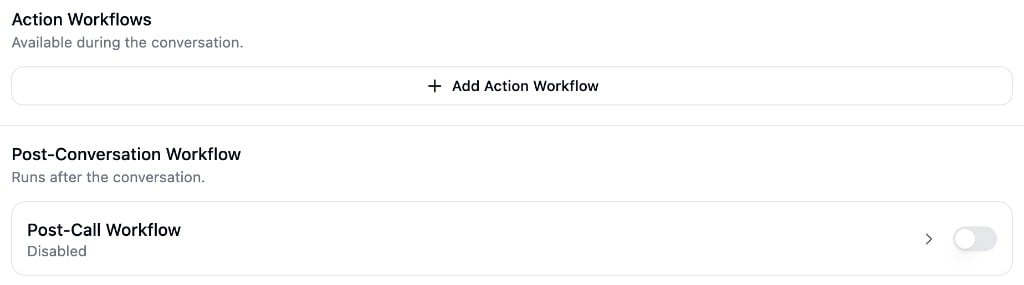
Action Workflows
Action workflows run during a live conversation. Reference them in your agent’s instructions or advanced rules using@ and tell the agent when to trigger them. For example, to look up account data, send an SMS, process a payment, or transfer a call.
When triggered, the agent can collect the action variables you’ve defined from the conversation, execute the workflow, and use the response to continue the conversation.
Creating and configuring action workflows
Step-by-step guide to adding an action workflow, defining its settings, variables, and response schema.
Post-Conversation Workflow
The post-conversation workflow runs automatically after a conversation ends. Use it for follow-up tasks like updating CRM records, sending notification emails, creating support tickets, or running staged outreach sequences. Post-conversation workflows have access to the full conversation transcript, analysis data, and all variables, and aren’t constrained by a time limit.Enabling and building the post-conversation workflow
How to enable post-conversation automation, build multi-step flows, and use patterns like conditional
routing and delayed follow-ups.
Using the Workflow Builder
Both workflow types share the same builder. When you open a workflow, the editor switches from the conversation flow graph to a vertical node chain.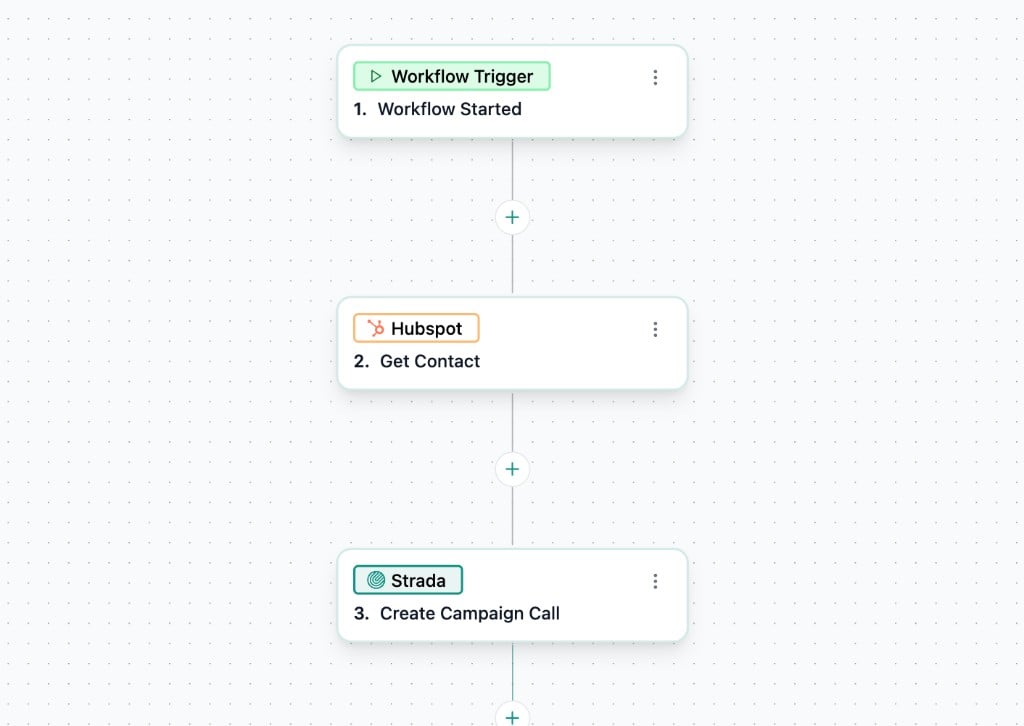
- Click the button between nodes to add a new step
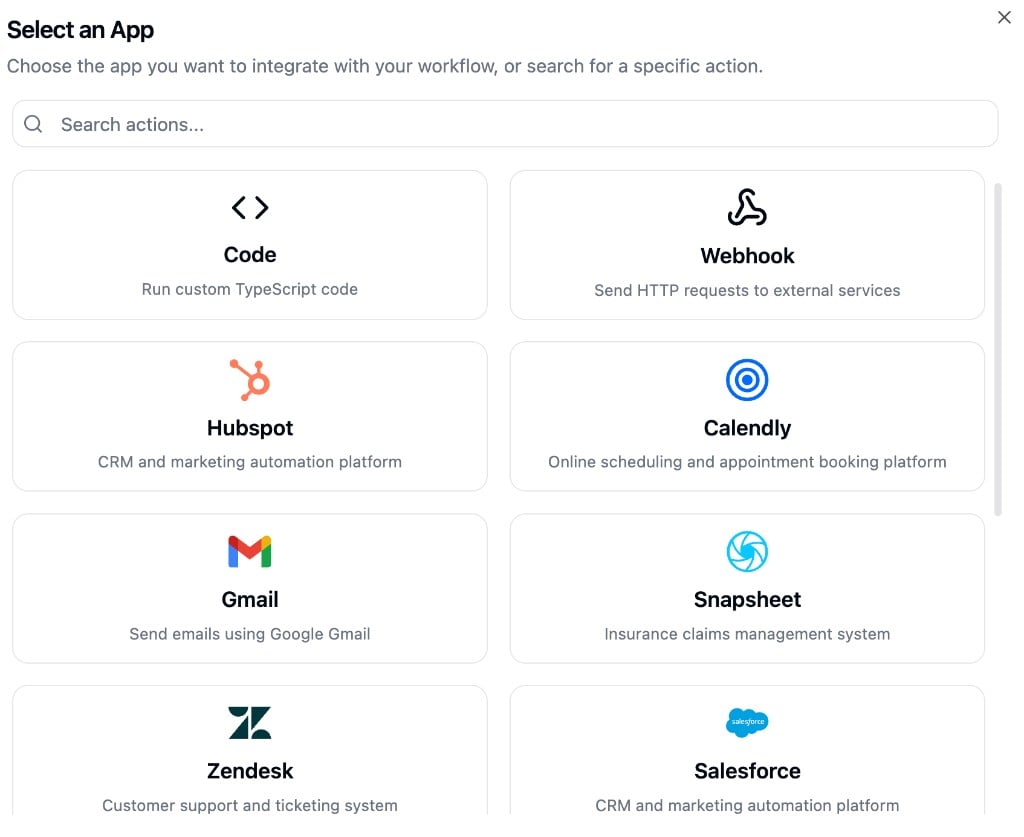
- Select an app from the grid, then choose the specific action
- Click a node to configure it in the left panel
- Use
/in any configuration field to reference variables from the conversation, analysis data, or outputs from previous nodes
Publishing
Workflows have their own publish model, separate from the agent’s draft/publish cycle. When you configure a node, click Save Changes at the bottom of the configuration panel to persist that node’s settings. Once you’ve saved your changes, a banner appears at the top of the builder with two options:
- Publish Workflow - Makes the current changes live
- Undo Changes - Reverts to the last published version
Variables and Data Mapping
Every node can reference data from the conversation. Type/ in any configuration field to open the variable picker:
- Call and chat variables passed into the conversation
- Analysis data extracted by the agent (post-conversation workflows only)
- Secure metadata (encrypted values not visible to the LLM)
- Outputs from previous nodes in the workflow
- Session variables set during the conversation