

@ and tell the agent when to trigger it.
When triggered, the agent can collect the action variables you’ve defined from the conversation, execute the workflow, and use the response to continue the conversation.
Creating an Action Workflow
From the Workflows panel in the Conversation Flow editor, click Add Action Workflow. This creates a new action workflow and opens it in the builder. Each action workflow appears as a card in the Workflows panel showing its name, description, and a preview of the nodes it contains. Click a workflow card to open it. After creating the workflow, make sure to reference it in your agent’s instructions or advanced rules using@ so the agent knows when to use it.
Workflow Settings
When you open an action workflow and no node is selected, the left panel shows the workflow settings: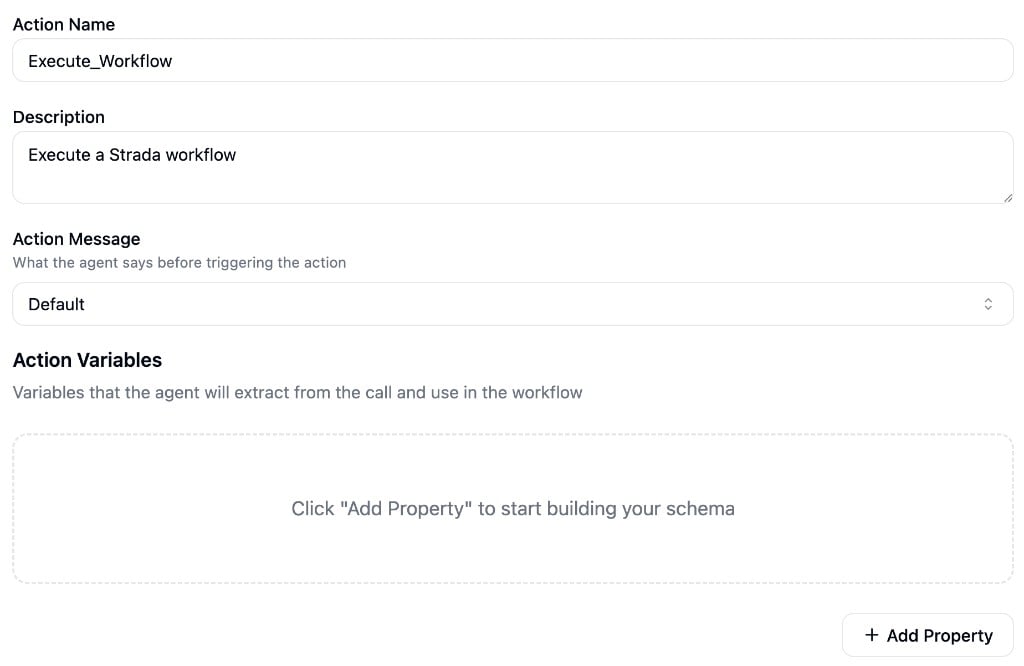
- Action Name - The internal identifier for this workflow. Must only contain letters, numbers, underscores, and hyphens (max 64 characters).
- Description - A short description of what the workflow does (max 500 characters). The agent uses this description to decide when to trigger the workflow.
- Action Message - What the agent says to the caller while the workflow runs. Choose Default (a generic hold message), Custom (your own message), or None (the agent stays silent).
- Action Variables - The inputs the workflow needs from the conversation. The agent will extract each variable from the caller before running the workflow. For each variable, define a name, a type (string, number, boolean, integer, or object), and a description that helps the agent understand what to collect.
- Response Schema - A schema defining the structure of the data the workflow returns to the agent. The agent can use these values to continue the conversation.
Time Limit
Action workflows must complete within 30 seconds. The caller is waiting in real time, so keep workflows fast. If a workflow exceeds the time limit, it will fail and the agent will continue the conversation without the workflow’s response.Available Nodes
Action workflows have access to most integration nodes. A few nodes are specific to action workflows:- Return Response - Returns data to the agent and exits the workflow. This is how the workflow sends results back to the conversation.
- End Call - Ends the current call from within the workflow.
- Transfer Call - Transfers the call to another phone number or SIP destination.
- Handoff - Hands the conversation to another Strada agent.