

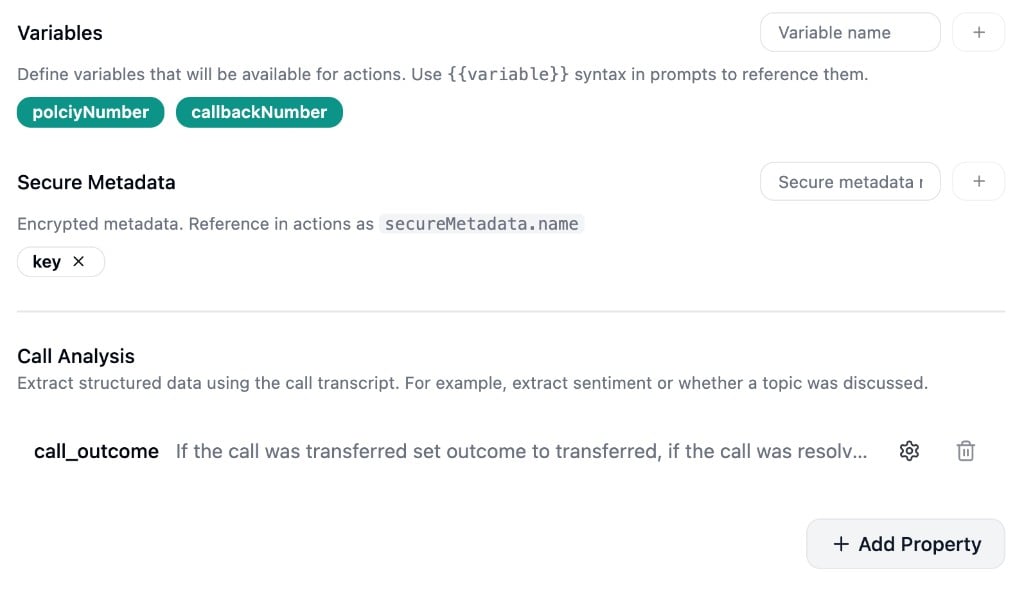
Variables
Variables let you pass dynamic data into your agent’s prompts. For outbound calls, variables are provided when the call is created (e.g., through a campaign or API). For inbound calls, variables can be populated through pre-call workflows or incoming call personalization. To add a variable, type a name in the input field and press Enter or click . Variables appear as badges: Referenced variables appear as filled badges and cannot be removed. Unreferenced variables appear as outline badges and can be removed. To use a variable in any text area across the conversation flow, type/ to open the variable picker and select the variable you want to insert. Variables referenced this way are automatically added to the variable list when you save your draft.
Variable names must not contain whitespace. You can use camelCase or snake_case.
Secure Metadata
Secure metadata works like variables but with an important distinction: the values are encrypted and never passed to the language model. Use secure metadata for sensitive information like API keys, account tokens, or credentials that your agent’s actions or workflows need to access. Add secure metadata keys the same way as variables. Secure metadata is only accessible in workflow node configurations (action and post-conversation workflows), not in conversation prompts. Use/ in workflow node fields to reference them. They appear under secureMetadata.
Call Analysis
Call Analysis lets you extract structured data from every conversation. Define a schema of properties, and the platform will automatically analyze the transcript after each call to populate them. Common use cases include sentiment classification, topic detection, outcome tracking, and extracting specific data points discussed during the call.Defining Properties
Click Add property to define what you want to extract. Each property has:- Name - A clear, query-friendly identifier (e.g., “sentiment”, “resolved_by_ai”, “topics_discussed”)
- Type - The data format: String, Number, Boolean, Array, or Object (for nested structures). For String properties, click the button on the property to expand advanced settings where you can define enum values for fixed choices.
- Description - Instructions for the AI on how and what to extract. Treat this as a small, focused prompt.
Example:
- Name:
resolved_by_ai- Type: Boolean
- Description: True if the agent successfully answered the customer’s inquiry without needing to transfer. False otherwise.
The description is what drives the extraction. Be specific and unambiguous about what value to return and
under what conditions.
Best Practices
- Keep each property focused on extracting one thing.
- Match the type to the expected value. Use Boolean for yes/no, Enum for fixed choices, Number for counts or scores.
- Avoid open-ended String fields when a Boolean or Enum would work.
- Use clear, consistent naming so the data is easy to filter and chart.
Using Analysis Data
Extracted analysis data is available throughout the platform:- Filter and search conversations by analysis fields
- Build charts and dashboards in Analytics
- Reference analysis values in workflows using
/. They appear underanalysis - Push analysis data to external systems like CRMs