

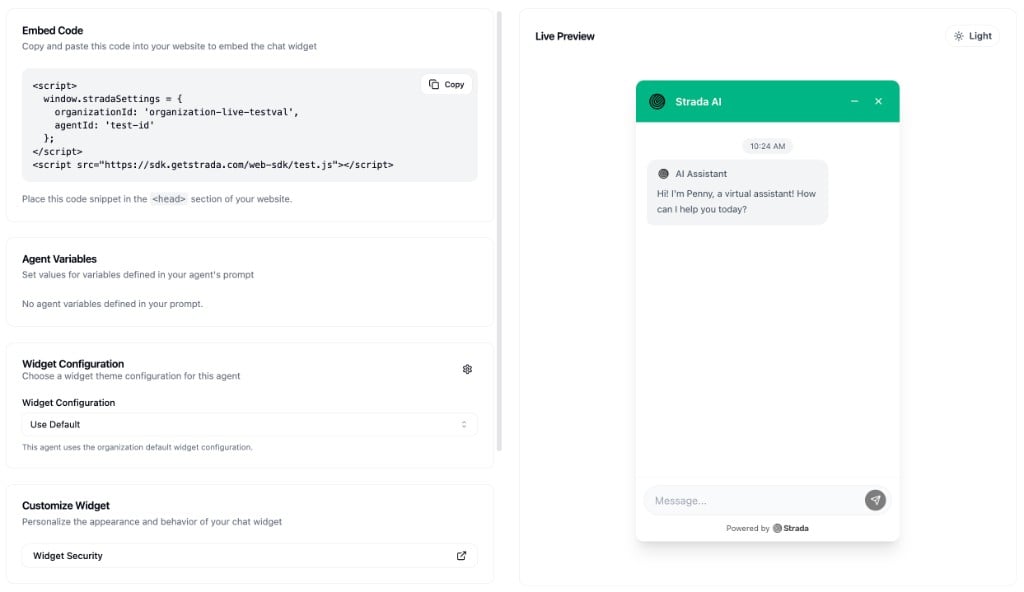
Embed Code
The page provides a ready-to-copy code snippet that you paste into your website’s<head> section. The snippet includes your organization ID and agent ID, so the widget automatically connects to the right agent.
Agent Variables
If your agent uses variables in its prompt, you can set test values for them here. These values are passed to the widget preview so you can see how the agent behaves with different inputs.- Each variable defined in your agent’s prompt appears as an input field
- Fill in values and click Apply Variables to send them to the preview
- Variable values are saved to your browser so they persist between sessions
Chat Widget Configuration
Choose which widget theme configuration to use for this agent’s chat widget. You can either:- Use Default - Applies the organization-wide default widget configuration
- Select a specific configuration - Pick from any widget configuration created in Settings > Widget Configurations
Chat Preview
The right side of the page shows a live preview of the chat widget. You can:- Toggle between light and dark mode using the theme button
- Test the conversation by typing messages
- See how agent variables affect the conversation in real time