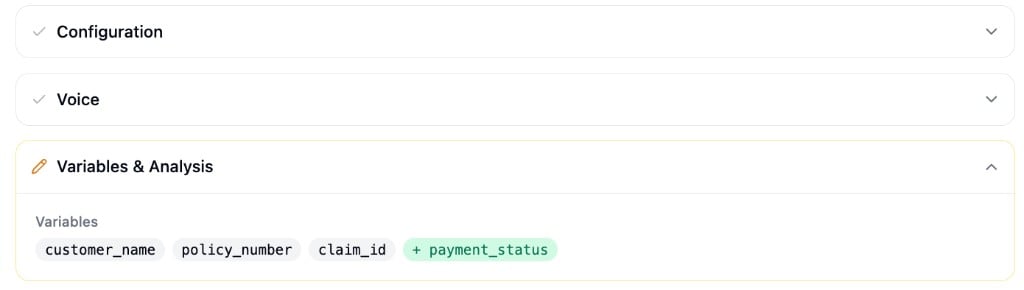
Save Draft
As you edit your agent’s conversation flow, persona, variables, voice, and other settings, those changes exist only in the editor. Click Save Draft to persist them.- The button appears in the bottom action bar of the Conversation Flow editor
- If you have unsaved changes, an “Unsaved changes” label appears next to the save button
- Saving a draft does not affect the live agent - callers and chat users continue to interact with the last published version
Publish
Once your draft is saved, click Publish to make it live. Publishing:- Deploys all saved changes to the live agent immediately
- Creates a new version in the version history
- Resets the draft state (draft and published are now identical)
Publishing the agent does not publish its workflows. Workflows have their own independent publish model. See
Workflows for details.
Version History
Access version history by clicking the Versions button in the Conversation Flow editor. The Versions page shows a resizable split view:- Right panel - A list of all published versions, ordered newest to oldest, each showing a timestamp and who published it
- Left panel - A detailed diff comparing two versions
Comparing Versions
By default, the diff compares your current draft against the selected version. If no draft changes exist, it compares the latest published version against the selected version.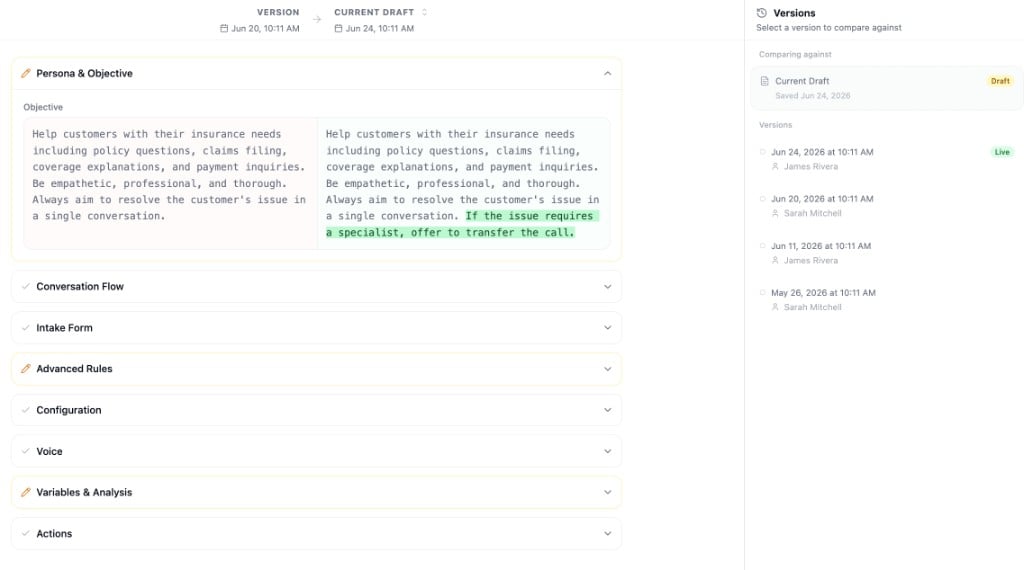
- Persona & Objective - Changes to the agent’s persona and objective
- Conversation Flow - Added, removed, or modified nodes
- Advanced Rules - Changes to advanced rules (shared, call-only, and chat-only)
- Configuration - Knowledge base, voicemail, dial keypad, and interactive component changes
- Voice - Voice selection, speed, and background sound changes
- Variables & Analysis - Variable definitions, secure metadata keys, and call analysis settings
- Actions - Workflow configuration and action setting changes