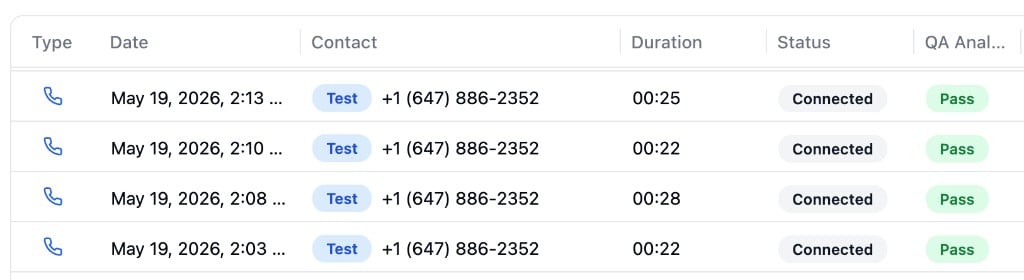
Overview
The Conversations page is your hub for reviewing every interaction your agents have, with calls and chats combined into a single, unified view. Filter by any metric, create saved views for your team, and view individual conversations to review transcripts, recordings, analysis data, and QA scores.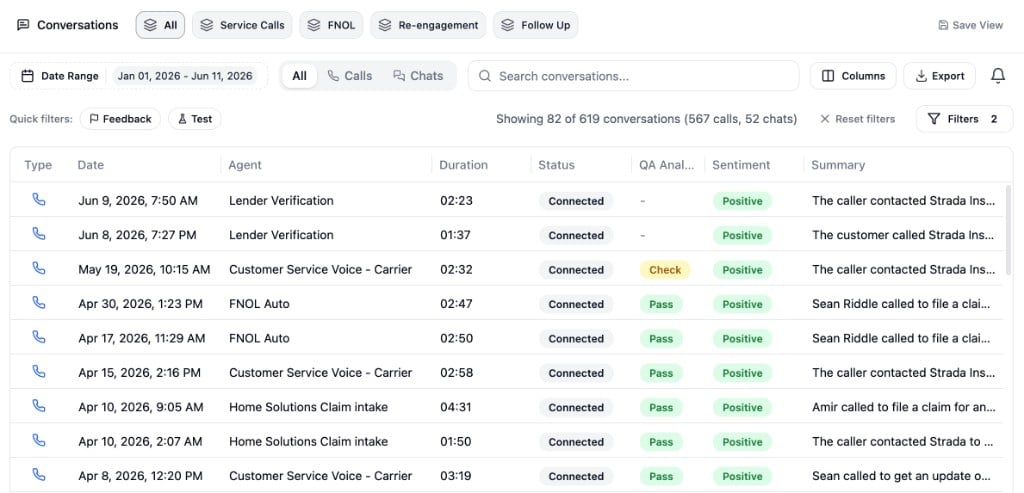
Navigating the Conversations Page
Type Tabs
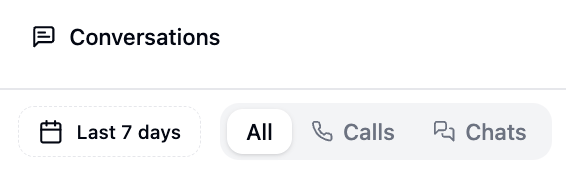
- All - Calls and chats interleaved, sorted by most recent
- Calls - Only voice conversations
- Chats - Only text-based conversations
Saved Views

- Create a view - Click the + button in the views bar
- Rename a view - Right-click a view tab and select Rename
- Save changes - Click the Save icon on the active view tab to persist your changes
- Delete a view - Right-click a view tab and select Delete
- Reorder views - Drag and drop view tabs to rearrange them
Saved views are shared across your organization, so any changes are visible to all members.
Filtering
Search
Use the search bar to find conversations matching keywords in their transcripts. Search works across both calls and chats.Date Range
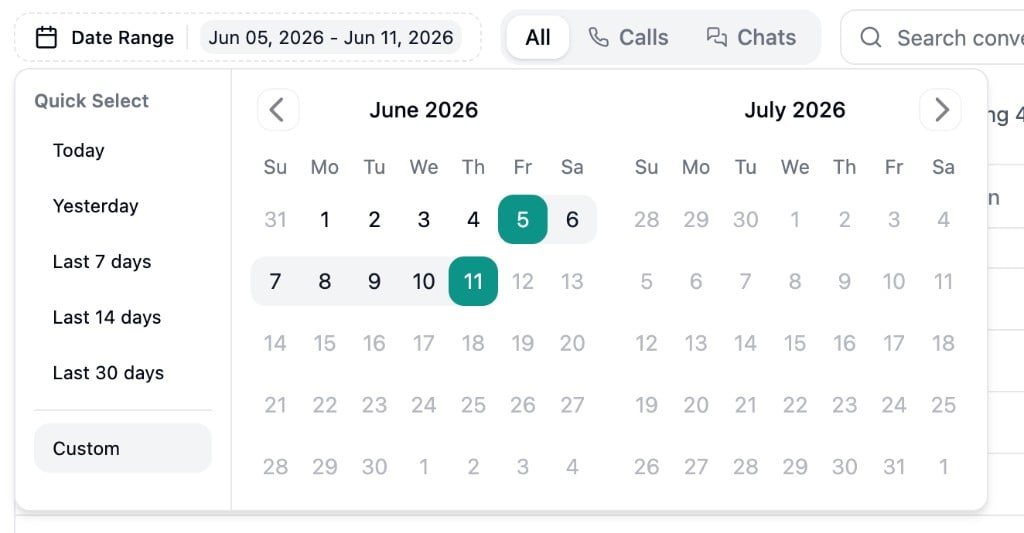
Filter Drawer
Click the Filter button to open the filter drawer. Filters are organized into collapsible sections:Common Filters
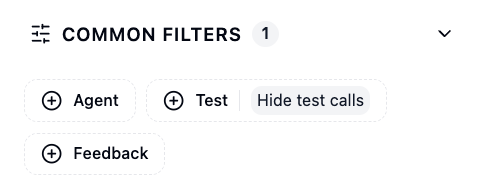
- Agent - Include or exclude specific agents
- Test - Hide test conversations
- Feedback - Show conversations with or without feedback
Call Filters
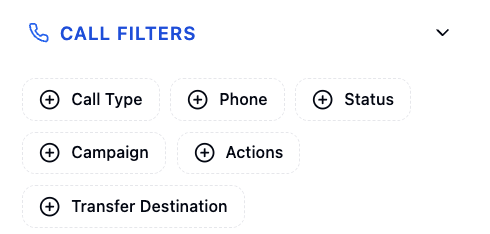
- Call Type - Inbound or Outbound
- Phone - Filter by specific phone numbers
- Status - Filter by ended reason (Connected, No Answer, etc.)
- Campaign - Filter by campaign name
- Actions - Filter by tools triggered during the call
- Transfer Destination - Filter by where calls were transferred
Chat Filters
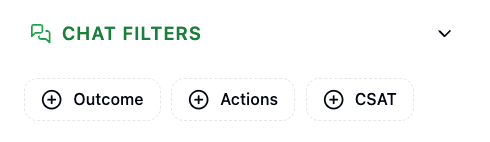
- Outcome - Filter by chat outcome
- Actions - Filter by tools triggered during the chat
- CSAT - Satisfied or Unsatisfied
Analysis Filters
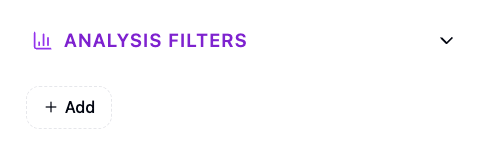
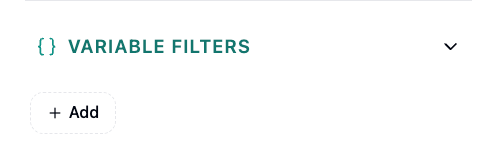
Variable Filters
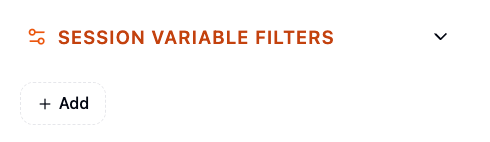
Session Variable Filters
QA Filters
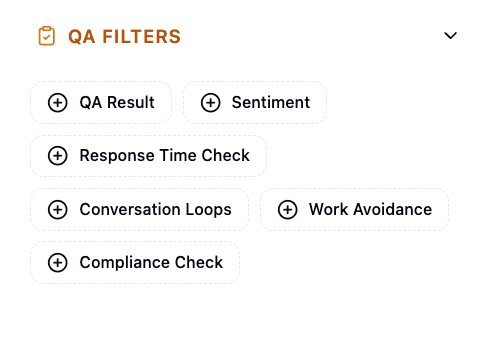
- QA Result - Filter by overall QA pass/fail
- Sentiment - Filter by sentiment label
- Each rubric you’ve configured appears as its own filter (e.g., Response Time Check, Compliance Check)
Quick Filters
Quick filter pills appear above the table for common one-click filters:- Feedback - Show only conversations that have feedback
- Test - Show only test conversations
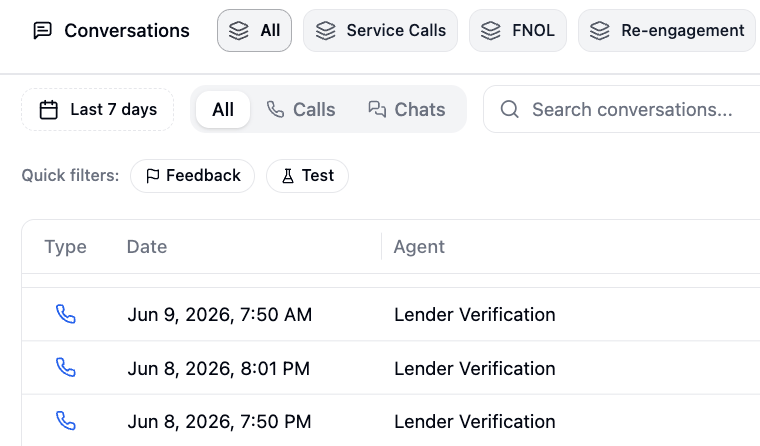
Table Columns
The table displays different default columns depending on the active type tab.All View
Calls View
Chats View
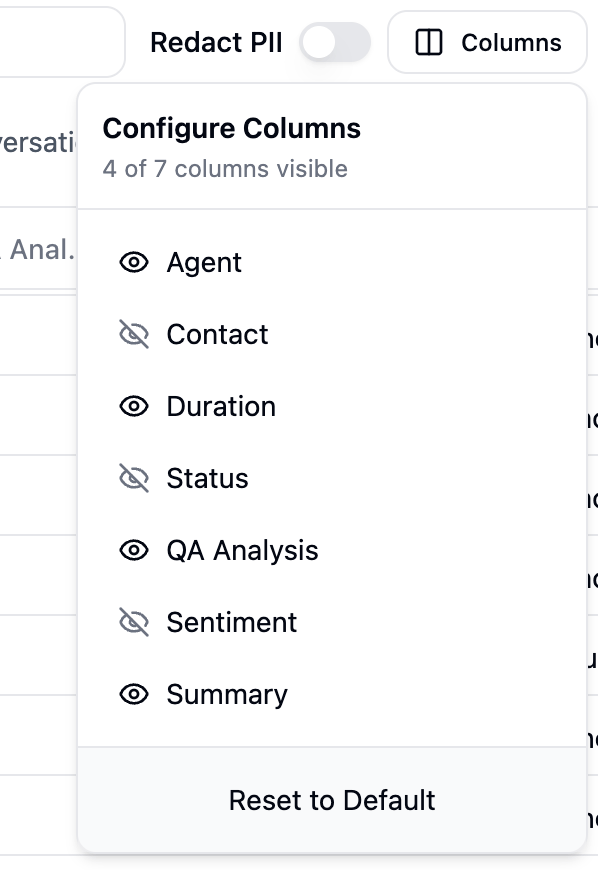
Configuring Columns
Conversation Details
Click any row to open the detail panel for that conversation.Test Conversations