

Overview
The Emails page gives you a complete view of every email thread your agents have processed, whether through direct email channels or HubSpot conversations. Filter by agent, channel, or date range, then open any thread to review the full exchange, execution steps, and feedback.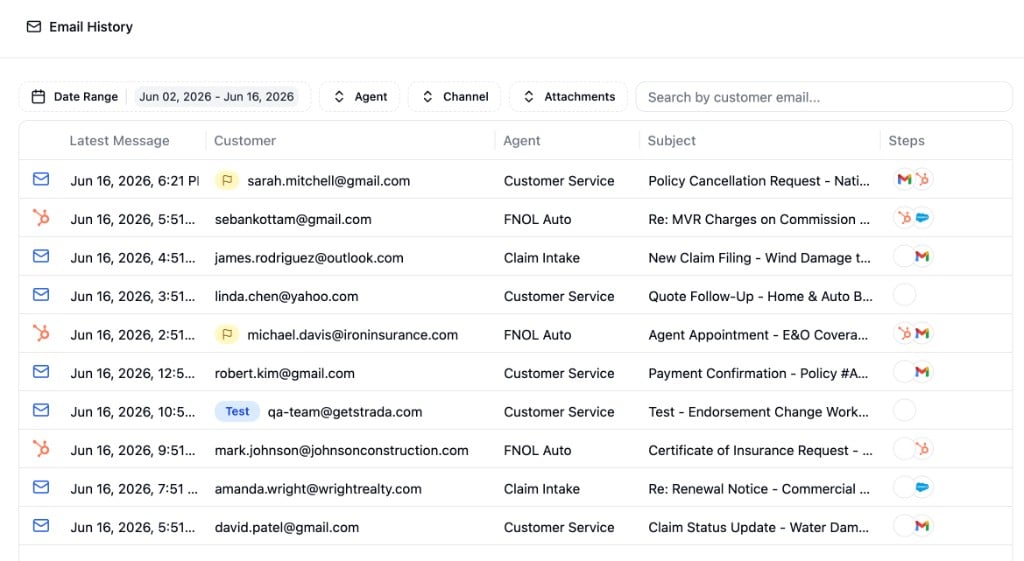
Email History
The table lists all email threads within your selected date range, sorted by most recent. Each row shows the channel type (email or HubSpot), the timestamp of the latest message, the customer’s email address, the agent that handled the thread, the subject line, and icons for any workflow steps triggered during processing. Threads involving test conversations or those with feedback are marked with badges next to the customer column.Filtering

Date Range
Select a start and end date using the date picker. By default, this is set to the last 14 days.Agent
Filter by a specific agent to see only threads that agent handled.Channel
Filter by email channel or HubSpot channel. Each option shows the configured email address or HubSpot account ID.Attachments
Narrow results to threads that do or do not include attachments.Customer Email Search
Type a customer email address into the search bar to narrow results. The search filters as you type.Thread Details
Click any row to open the thread detail panel on the right side of the page.Header
The header displays the channel type (Email Thread or HubSpot Conversation), the subject line, the date of the first message, and the customer’s email address.Messages
Each message in the thread appears as a card, labeled by role:- Customer - The original sender’s message
- Agent - Your AI agent’s response
- Live support agent - A message from a human who took over the conversation