

Overview
The Phone Numbers page is where you import, organize, and route the numbers your agents use. Import numbers from Twilio, group them, and control where inbound calls to each number are sent.Phone Numbers List
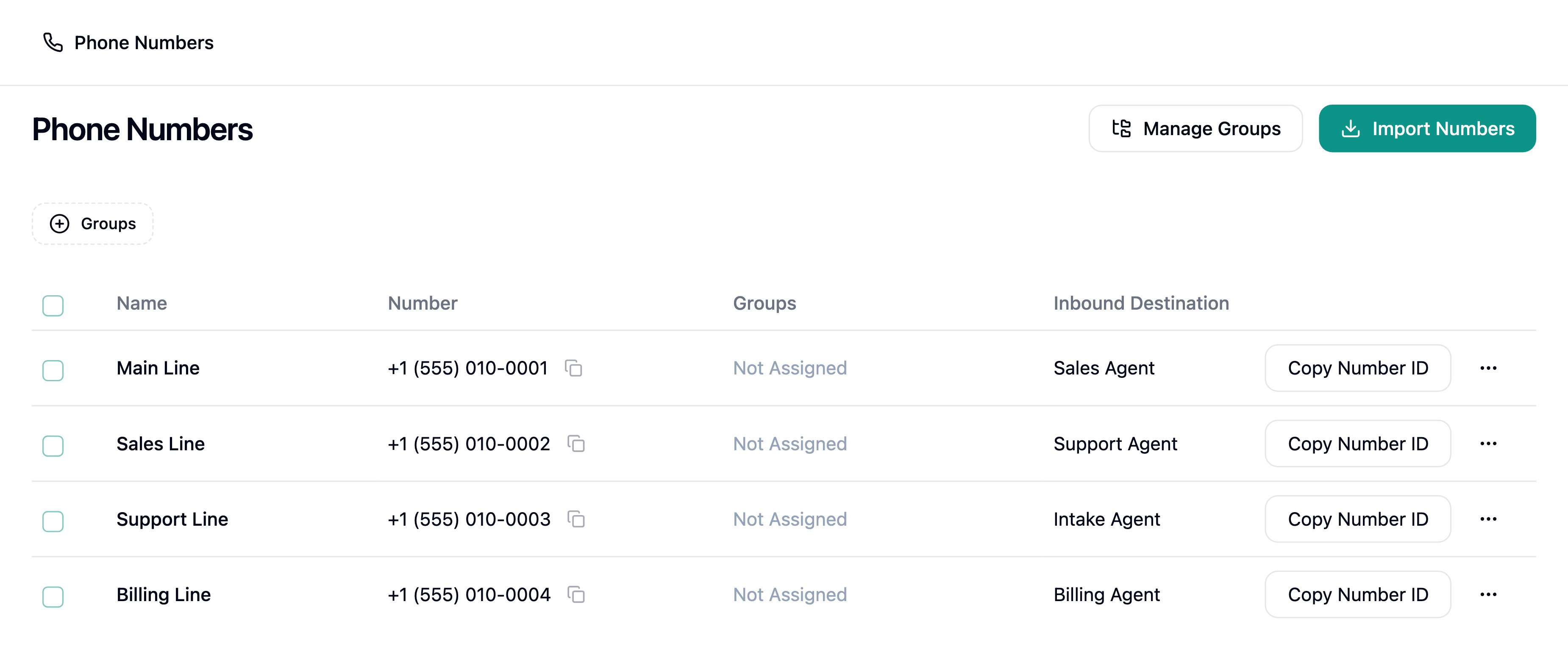
Every imported number appears in a table with:- Name - A label for the number
- Number - The phone number, with a button to copy it
- Groups - The groups the number belongs to, or Not Assigned
- Inbound Destination - The agent assigned to answer calls to this number, or a fallback number used when no agent is set
Row Actions
Each row has a Copy Number ID button and a menu with:- Update - Open the number’s settings to assign an agent or set a fallback destination
- Save Twilio Credentials - Store the Account SID and Auth Token for the number (Twilio numbers only) — required for Twilio Pay and other account-scoped features
- Delete - Remove the number
Importing, editing, grouping, and deleting numbers require phone-number management permissions. Without
them, the page is read-only.
Configuring a Number
Open a number’s Update action to configure how it handles calls. To rename the number, click its name at the top of the page and type a new one.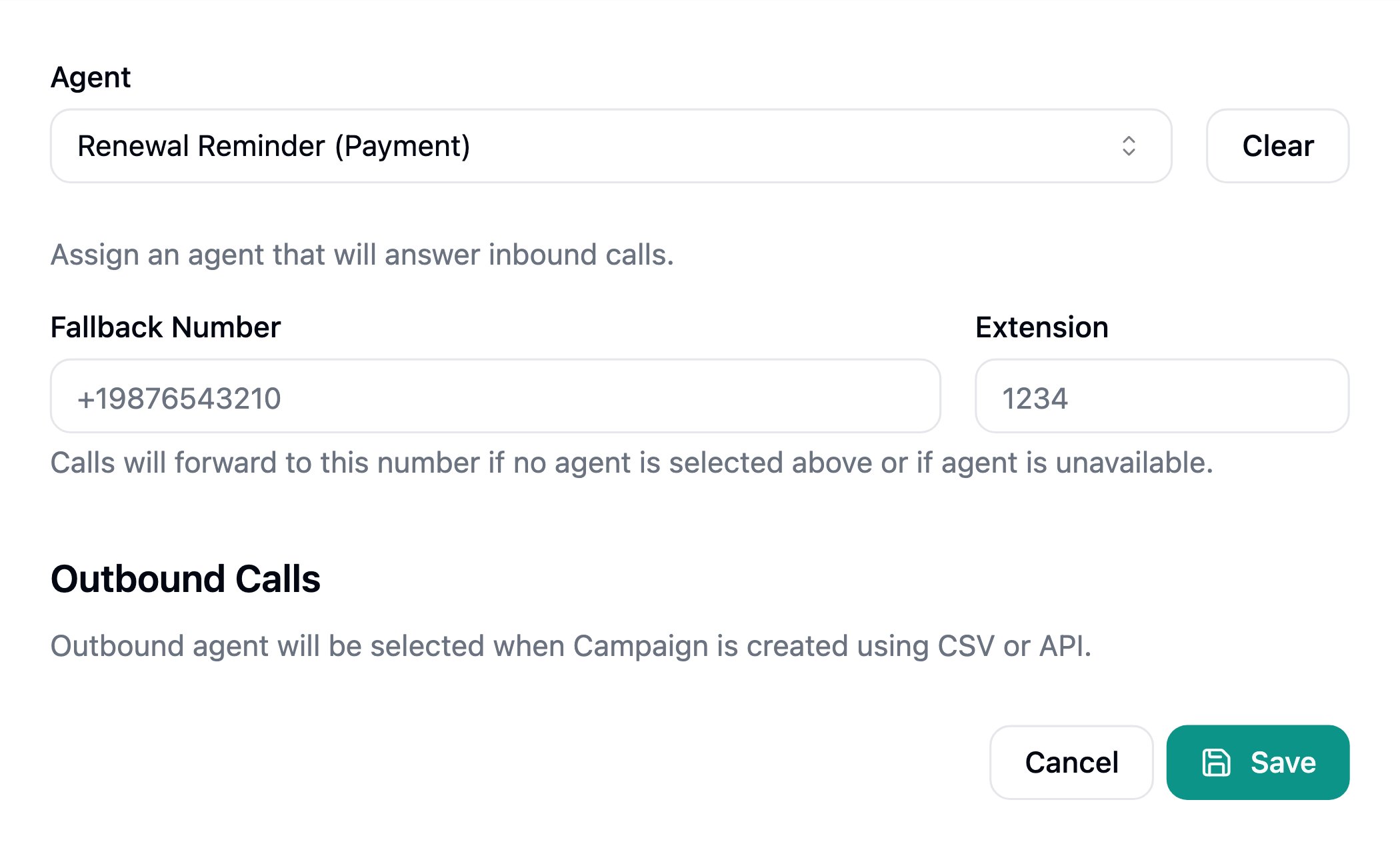
- Agent - The agent that answers inbound calls to this number. Use Clear to unassign it.
- Fallback Number (optional) - Calls forward to this number if no agent is assigned or the agent is unavailable. Use E.164 format (e.g.
+19876543210). - Extension (optional) - An extension to dial at the fallback number.
Groups
Use Manage Groups to organize your numbers: add a group with the Create New Group field, rename one with its edit icon, or remove one with its delete icon (which asks for confirmation). Each group shows how many numbers it contains.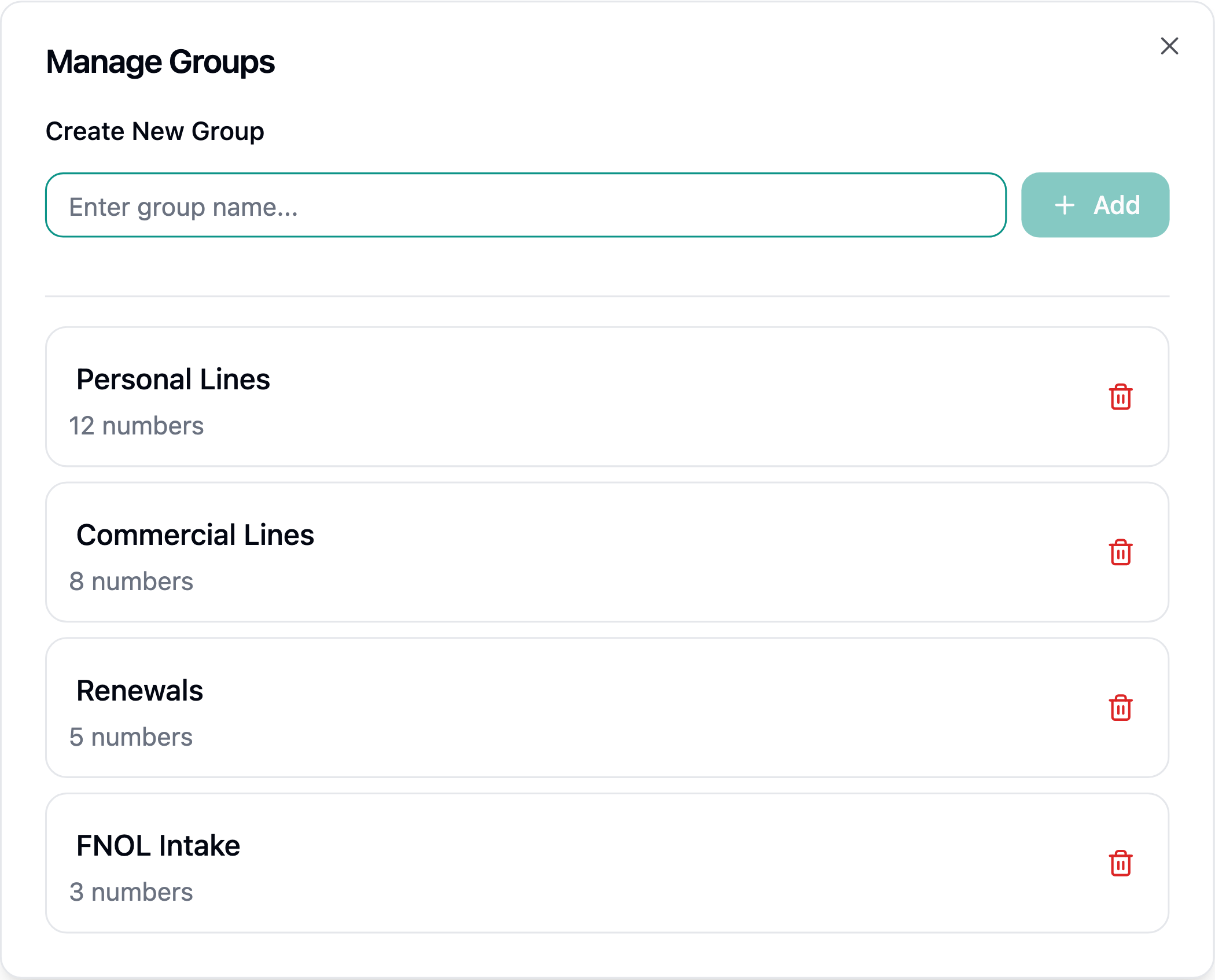
Importing Numbers from Twilio
Click Import Numbers in the top-right corner to import one of your own Twilio numbers.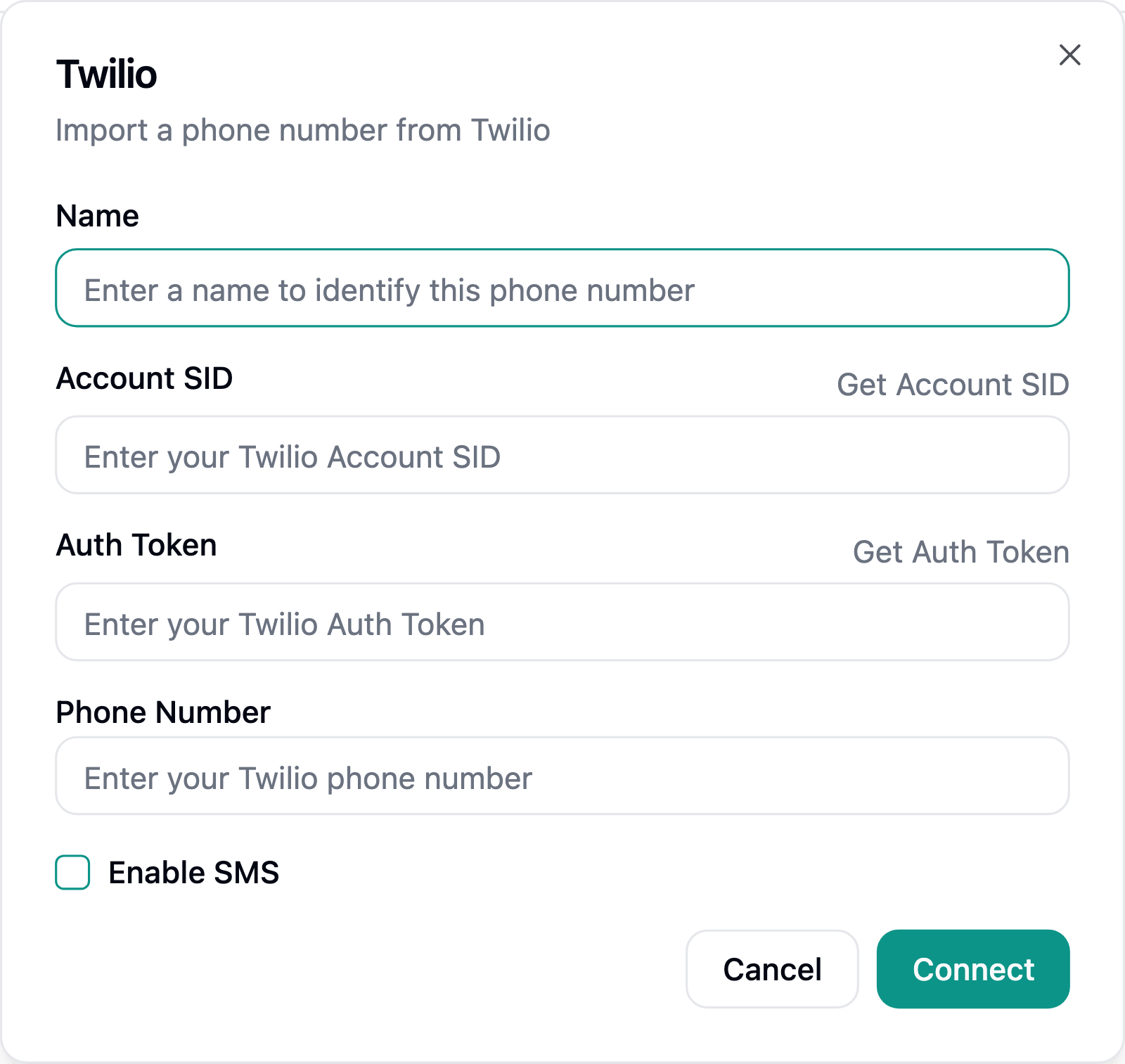
- Account SID and Auth Token - Your Twilio credentials. The Get Account SID and Get Auth Token links route you to the right page in the Twilio console as long as you’re logged in. The Auth Token is hidden as you type.
- Phone Number - The number to import, in E.164 format (e.g.
+11234567890). - Enable SMS - Connects the number’s Twilio account so it can be used for SMS in addition to voice — for example, with the Twilio Send SMS post-call workflow action.
Trusted Calling with Twilio
The following settings can be enabled in your Twilio account to improve the trust of your number and ultimately improve answer rates.CallerID Name (CNAM) Registration
Your display name will appear on your customers landlines and mobile phone when enabled by the subscriber. Instructions here.It can take 1-2 weeks to get approved for CNAM Registration.