

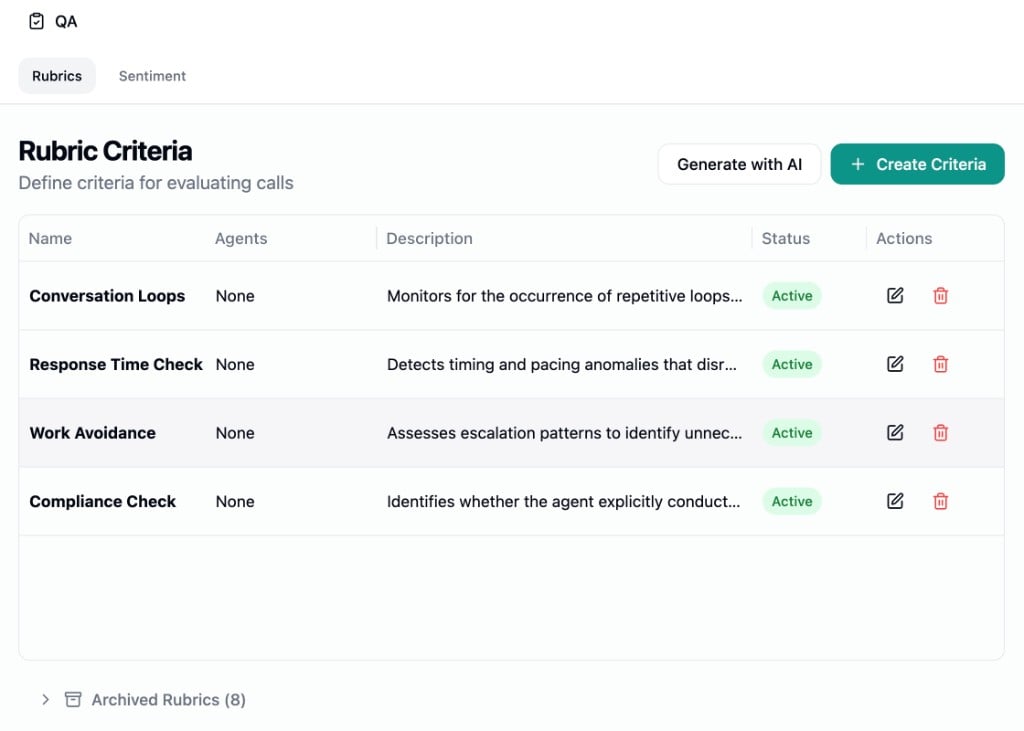
Creating a Criterion
Click Create Criteria to open the creation dialog.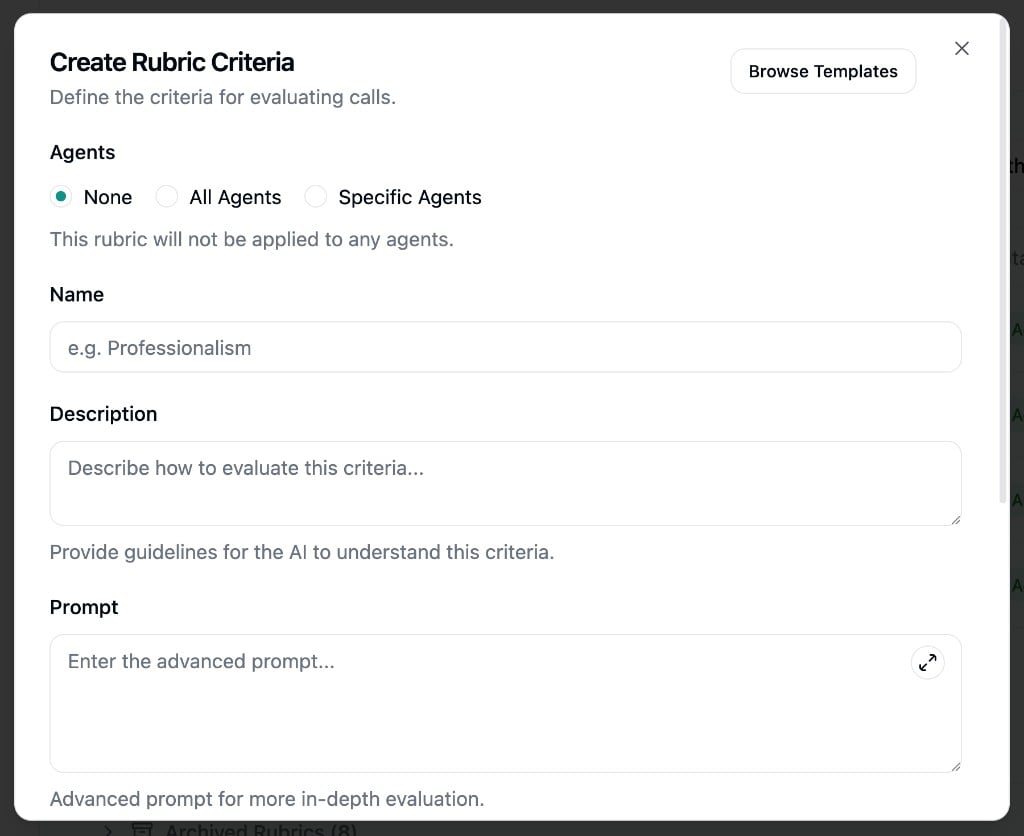
- Agents - Which agents this criterion applies to. Choose None, All Agents, or Specific Agents via the search picker. A criterion only runs on calls when it’s active and assigned to at least one agent.
- Name - A short identifier for the criterion (e.g., “Identity Verification”, “Professionalism”). Must be unique.
- Description - Human-readable guidelines for what this criterion evaluates. Shown in results but not sent to the AI evaluator.
- Prompt - The instruction the AI uses when evaluating. This is where you provide detailed evaluation logic. Be specific about what constitutes a pass or fail.
- Passed Label / Failed Label - Custom labels for results (defaults: “Pass” / “Fail”). For example, an FNOL completeness criterion might use “Complete” / “Incomplete”.
- Active - Toggle to enable or disable the criterion. Only active criteria linked to an agent are evaluated.
Templates
Click Create from Templates (or Browse Templates inside the creation dialog) to start from pre-built criteria. Templates cover common evaluation patterns including identity verification, compliance checks, objection handling, and more. Each template can be edited before creation. Templates are created with no agent assignments, so you’ll need to edit them and assign agents before they take effect.Generate with AI
Click Generate with AI to have criteria suggested based on your agents’ published prompt configurations.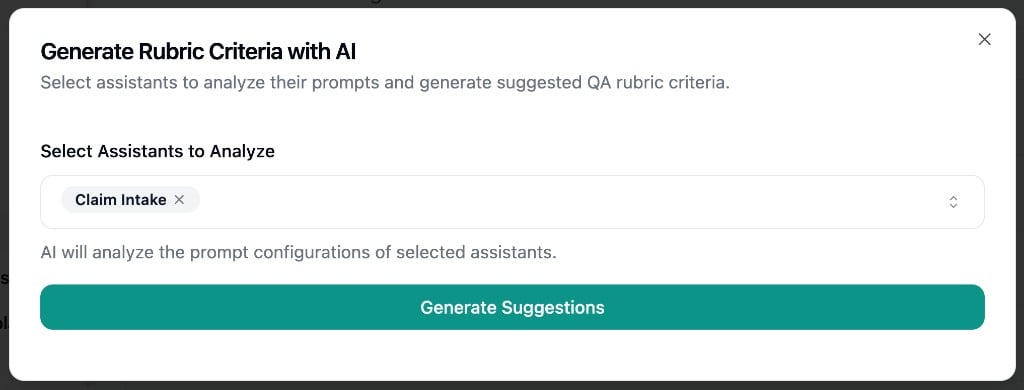
- Select one or more agents (must have a published version)
- Click Generate Suggestions
- Review suggestions grouped as Shared Criteria (across all selected agents) or per-agent
- Click Create on any suggestion to add it as a new criterion
How Evaluation Works
When a call or chat ends, the QA pipeline automatically evaluates all active criteria linked to that agent:- The AI analyzes the conversation transcript against each criterion’s name and prompt
- Each criterion receives a pass or fail result with AI-generated feedback
- The AI highlights specific transcript messages as success or failure evidence
- The overall QA result passes only if all criteria pass
Viewing Results
Conversations table
The QA Analysis column shows overall pass/fail. Use the filter drawer’s QA section to filter by overall result or individual criteria using their custom labels.Conversation detail
Toggle QA Mode in the conversation header to see:- Overall QA result
- Per-criterion pass/fail badges with custom labels
- AI-generated feedback for each criterion
- Transcript highlights marking relevant messages
Archiving and Restoring
Deleting a criterion moves it to the Archived Rubrics section at the bottom of the page. Archived criteria are not evaluated. Click Restore to bring a criterion back. After restoring, you’ll need to re-assign agents since agent associations are cleared on archive.Best Practices
- Write specific, actionable criterion prompts rather than vague guidelines
- Start with templates and customize them for your use case
- Assign criteria to specific agents rather than all agents when requirements differ between agents
- Review QA results periodically and refine prompts based on false positives or negatives