> ## Documentation Index
> Fetch the complete documentation index at: https://docs.getstrada.com/llms.txt
> Use this file to discover all available pages before exploring further.
# Sentiment Labels
> Tag conversations with custom sentiment labels
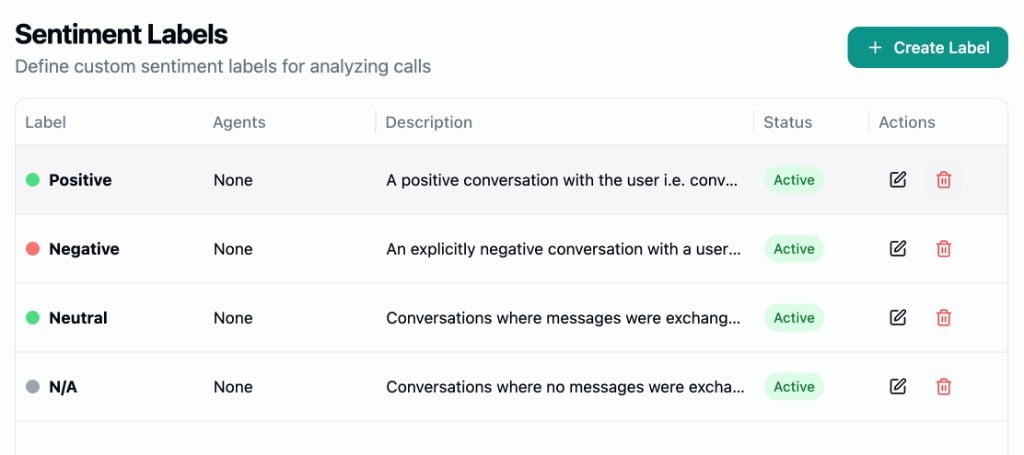
Sentiment Labels let you define custom categories that an AI evaluator uses to classify the overall sentiment of each call and chat. Results appear in the [Conversations](/logs/conversations) table, detail panels, filters, and [alerts](/deployment/alerts).
Navigate to **Settings > QA & Testing > Sentiment Labels** to manage your labels.
 ***
## Creating a Label
Click **Create Label** to open the editor. Each label has the following fields:
* **Agents** - Which agents this label applies to. Choose **None** (label won't be used in evaluation), **All Agents**, or search and select **Specific Agents**.
* **Label** - The display name for this sentiment (e.g., "Frustrated", "Satisfied", "Neutral").
* **Description** - Guidelines that help the AI understand when to apply this label. Be specific about the signals and behaviors that characterize this sentiment.
* **Color** - A color for the label badge. Choose from yellow, green, red, blue, orange, or gray.
* **Active** - Toggle to enable or disable the label. Only active labels linked to an agent are used during evaluation.
Click **Save** to persist the label.
***
## Templates
Click **Create from Templates** to start with four common sentiment categories:
| Template | Description |
| ------------ | ------------------------------------------------------------------------------- |
| **Positive** | User showed happiness, joy, or satisfaction toward the agent experience |
| **Negative** | User showed sadness, disappointment, or frustration toward the agent experience |
| **Neutral** | Transactional exchange with no clear emotion |
| **N/A** | No messages exchanged (voicemail, dead air, unresponsive chat) |
Templates are created with no agent assignments. Edit each label and assign agents before they take effect.
***
## How Evaluation Works
When a call or chat ends, the QA pipeline selects the best-matching sentiment label from those configured for that agent. Each conversation receives one overall sentiment label.
Sentiment evaluation runs alongside [QA Rubrics](/settings/qa/rubrics) if both are configured. If neither rubrics nor sentiment labels are configured for an agent, QA analysis is skipped entirely.
***
## Viewing Results
### Conversations table
The optional **Sentiment** column shows a colored badge with the label name. Use the filter drawer's QA section to filter conversations by sentiment.
### Conversation detail
The QA section of the conversation detail panel shows the **Overall Sentiment** badge when a label was assigned.
***
## Archiving and Restoring
Deleting a label moves it to the **Archived Labels** section at the bottom of the page. Archived labels are not used in evaluation. Click **Restore** to bring a label back. After restoring, you'll need to re-assign agents since agent associations are cleared on archive.
***
## Creating a Label
Click **Create Label** to open the editor. Each label has the following fields:
* **Agents** - Which agents this label applies to. Choose **None** (label won't be used in evaluation), **All Agents**, or search and select **Specific Agents**.
* **Label** - The display name for this sentiment (e.g., "Frustrated", "Satisfied", "Neutral").
* **Description** - Guidelines that help the AI understand when to apply this label. Be specific about the signals and behaviors that characterize this sentiment.
* **Color** - A color for the label badge. Choose from yellow, green, red, blue, orange, or gray.
* **Active** - Toggle to enable or disable the label. Only active labels linked to an agent are used during evaluation.
Click **Save** to persist the label.
***
## Templates
Click **Create from Templates** to start with four common sentiment categories:
| Template | Description |
| ------------ | ------------------------------------------------------------------------------- |
| **Positive** | User showed happiness, joy, or satisfaction toward the agent experience |
| **Negative** | User showed sadness, disappointment, or frustration toward the agent experience |
| **Neutral** | Transactional exchange with no clear emotion |
| **N/A** | No messages exchanged (voicemail, dead air, unresponsive chat) |
Templates are created with no agent assignments. Edit each label and assign agents before they take effect.
***
## How Evaluation Works
When a call or chat ends, the QA pipeline selects the best-matching sentiment label from those configured for that agent. Each conversation receives one overall sentiment label.
Sentiment evaluation runs alongside [QA Rubrics](/settings/qa/rubrics) if both are configured. If neither rubrics nor sentiment labels are configured for an agent, QA analysis is skipped entirely.
***
## Viewing Results
### Conversations table
The optional **Sentiment** column shows a colored badge with the label name. Use the filter drawer's QA section to filter conversations by sentiment.
### Conversation detail
The QA section of the conversation detail panel shows the **Overall Sentiment** badge when a label was assigned.
***
## Archiving and Restoring
Deleting a label moves it to the **Archived Labels** section at the bottom of the page. Archived labels are not used in evaluation. Click **Restore** to bring a label back. After restoring, you'll need to re-assign agents since agent associations are cleared on archive.