> ## Documentation Index
> Fetch the complete documentation index at: https://docs.getstrada.com/llms.txt
> Use this file to discover all available pages before exploring further.
# QA Rubrics
> Define pass/fail criteria for evaluating conversations
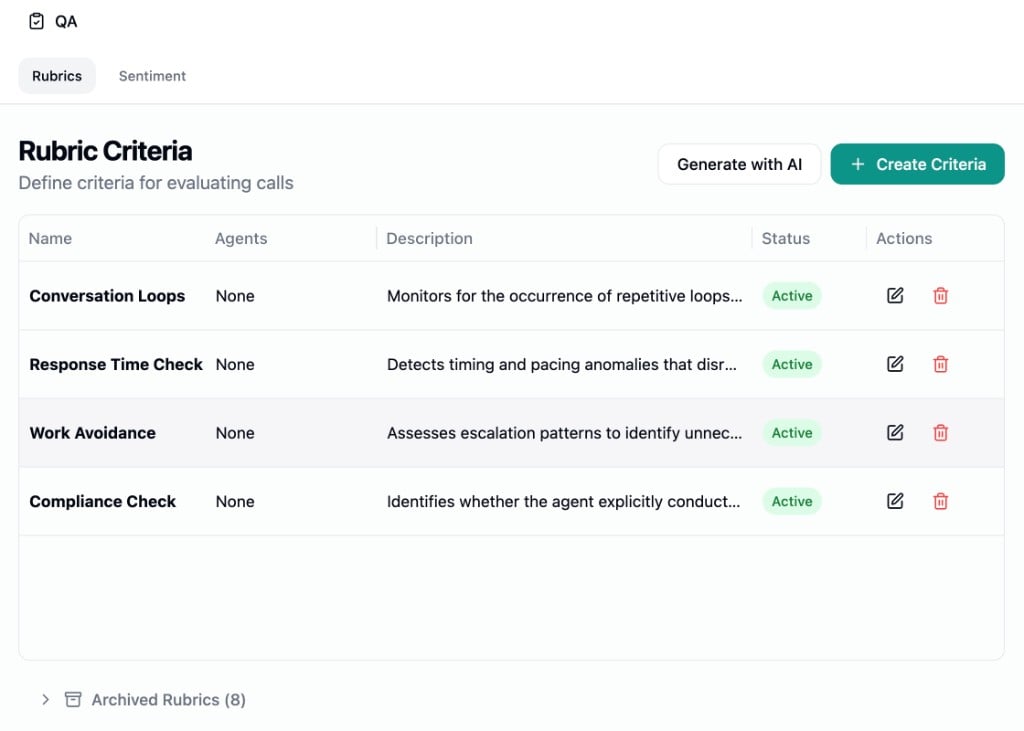
QA Rubrics let you define criteria that an AI evaluator applies to every call and chat. Each criterion is evaluated as pass or fail, with AI-generated feedback and transcript highlights showing the relevant messages. Results appear in the [Conversations](/logs/conversations) table, detail panels, filters, and [alerts](/deployment/alerts).
Navigate to **Settings > QA & Testing > QA Rubrics** to manage your criteria.
 ***
## Creating a Criterion
Click **Create Criteria** to open the creation dialog.
***
## Creating a Criterion
Click **Create Criteria** to open the creation dialog.
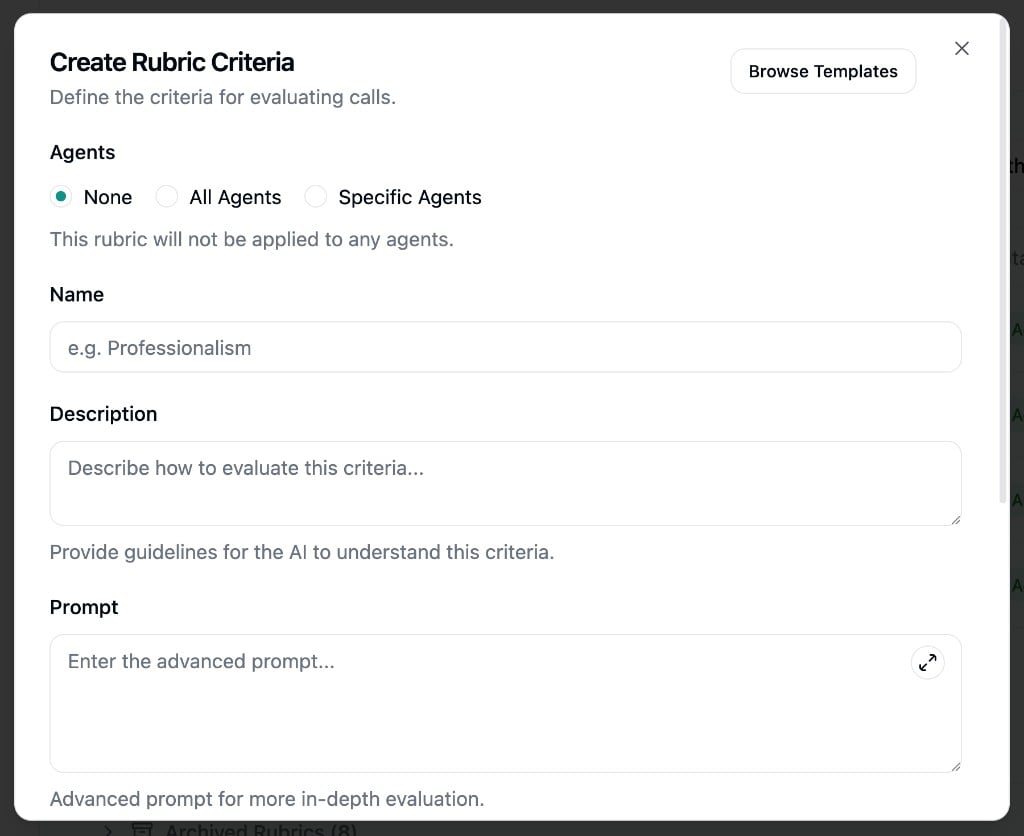 Each criterion has the following fields:
* **Agents** - Which agents this criterion applies to. Choose **None**, **All Agents**, or **Specific Agents** via the search picker. A criterion only runs on calls when it's active and assigned to at least one agent.
* **Name** - A short identifier for the criterion (e.g., "Identity Verification", "Professionalism"). Must be unique.
* **Description** - Human-readable guidelines for what this criterion evaluates. Shown in results but not sent to the AI evaluator.
* **Prompt** - The instruction the AI uses when evaluating. This is where you provide detailed evaluation logic. Be specific about what constitutes a pass or fail.
* **Passed Label** / **Failed Label** - Custom labels for results (defaults: "Pass" / "Fail"). For example, an FNOL completeness criterion might use "Complete" / "Incomplete".
* **Active** - Toggle to enable or disable the criterion. Only active criteria linked to an agent are evaluated.
Click **Save** to persist the criterion.
***
## Templates
Click **Create from Templates** (or **Browse Templates** inside the creation dialog) to start from pre-built criteria. Templates cover common evaluation patterns including identity verification, compliance checks, objection handling, and more.
Each template can be edited before creation. Templates are created with no agent assignments, so you'll need to edit them and assign agents before they take effect.
***
## Generate with AI
Click **Generate with AI** to have criteria suggested based on your agents' published prompt configurations.
Each criterion has the following fields:
* **Agents** - Which agents this criterion applies to. Choose **None**, **All Agents**, or **Specific Agents** via the search picker. A criterion only runs on calls when it's active and assigned to at least one agent.
* **Name** - A short identifier for the criterion (e.g., "Identity Verification", "Professionalism"). Must be unique.
* **Description** - Human-readable guidelines for what this criterion evaluates. Shown in results but not sent to the AI evaluator.
* **Prompt** - The instruction the AI uses when evaluating. This is where you provide detailed evaluation logic. Be specific about what constitutes a pass or fail.
* **Passed Label** / **Failed Label** - Custom labels for results (defaults: "Pass" / "Fail"). For example, an FNOL completeness criterion might use "Complete" / "Incomplete".
* **Active** - Toggle to enable or disable the criterion. Only active criteria linked to an agent are evaluated.
Click **Save** to persist the criterion.
***
## Templates
Click **Create from Templates** (or **Browse Templates** inside the creation dialog) to start from pre-built criteria. Templates cover common evaluation patterns including identity verification, compliance checks, objection handling, and more.
Each template can be edited before creation. Templates are created with no agent assignments, so you'll need to edit them and assign agents before they take effect.
***
## Generate with AI
Click **Generate with AI** to have criteria suggested based on your agents' published prompt configurations.
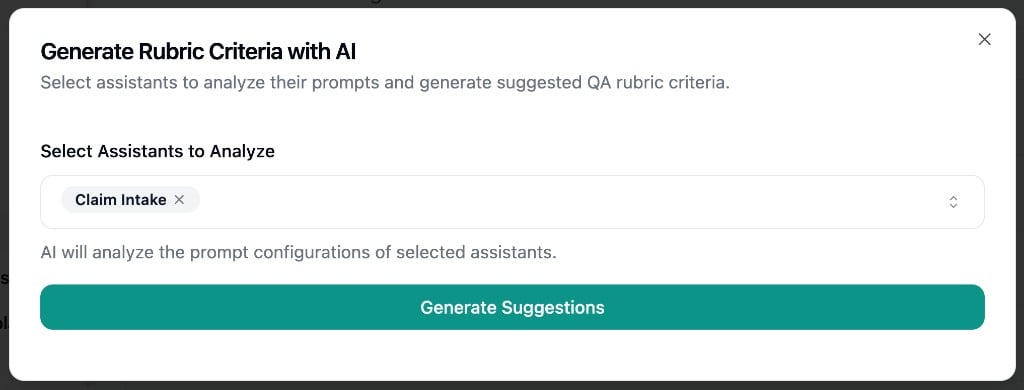 1. Select one or more agents (must have a published version)
2. Click **Generate Suggestions**
3. Review suggestions grouped as **Shared Criteria** (across all selected agents) or per-agent
4. Click **Create** on any suggestion to add it as a new criterion
AI-generated criteria are automatically linked to the relevant agents.
***
## How Evaluation Works
When a call or chat ends, the QA pipeline automatically evaluates all active criteria linked to that agent:
1. The AI analyzes the conversation transcript against each criterion's name and prompt
2. Each criterion receives a **pass** or **fail** result with AI-generated feedback
3. The AI highlights specific transcript messages as success or failure evidence
4. The **overall QA result** passes only if all criteria pass
Evaluation runs alongside [Sentiment Labels](/settings/qa/sentiment-labels) if both are configured.
***
## Viewing Results
### Conversations table
The QA Analysis column shows overall pass/fail. Use the filter drawer's QA section to filter by overall result or individual criteria using their custom labels.
### Conversation detail
Toggle **QA Mode** in the conversation header to see:
* Overall QA result
* Per-criterion pass/fail badges with custom labels
* AI-generated feedback for each criterion
* Transcript highlights marking relevant messages
***
## Archiving and Restoring
Deleting a criterion moves it to the **Archived Rubrics** section at the bottom of the page. Archived criteria are not evaluated. Click **Restore** to bring a criterion back. After restoring, you'll need to re-assign agents since agent associations are cleared on archive.
***
## Best Practices
* Write specific, actionable criterion prompts rather than vague guidelines
* Start with templates and customize them for your use case
* Assign criteria to specific agents rather than all agents when requirements differ between agents
* Review QA results periodically and refine prompts based on false positives or negatives
1. Select one or more agents (must have a published version)
2. Click **Generate Suggestions**
3. Review suggestions grouped as **Shared Criteria** (across all selected agents) or per-agent
4. Click **Create** on any suggestion to add it as a new criterion
AI-generated criteria are automatically linked to the relevant agents.
***
## How Evaluation Works
When a call or chat ends, the QA pipeline automatically evaluates all active criteria linked to that agent:
1. The AI analyzes the conversation transcript against each criterion's name and prompt
2. Each criterion receives a **pass** or **fail** result with AI-generated feedback
3. The AI highlights specific transcript messages as success or failure evidence
4. The **overall QA result** passes only if all criteria pass
Evaluation runs alongside [Sentiment Labels](/settings/qa/sentiment-labels) if both are configured.
***
## Viewing Results
### Conversations table
The QA Analysis column shows overall pass/fail. Use the filter drawer's QA section to filter by overall result or individual criteria using their custom labels.
### Conversation detail
Toggle **QA Mode** in the conversation header to see:
* Overall QA result
* Per-criterion pass/fail badges with custom labels
* AI-generated feedback for each criterion
* Transcript highlights marking relevant messages
***
## Archiving and Restoring
Deleting a criterion moves it to the **Archived Rubrics** section at the bottom of the page. Archived criteria are not evaluated. Click **Restore** to bring a criterion back. After restoring, you'll need to re-assign agents since agent associations are cleared on archive.
***
## Best Practices
* Write specific, actionable criterion prompts rather than vague guidelines
* Start with templates and customize them for your use case
* Assign criteria to specific agents rather than all agents when requirements differ between agents
* Review QA results periodically and refine prompts based on false positives or negatives