> ## Documentation Index
> Fetch the complete documentation index at: https://docs.getstrada.com/llms.txt
> Use this file to discover all available pages before exploring further.
# Pronunciations
> Teach your agents to pronounce words, names, and phrases correctly
## Overview
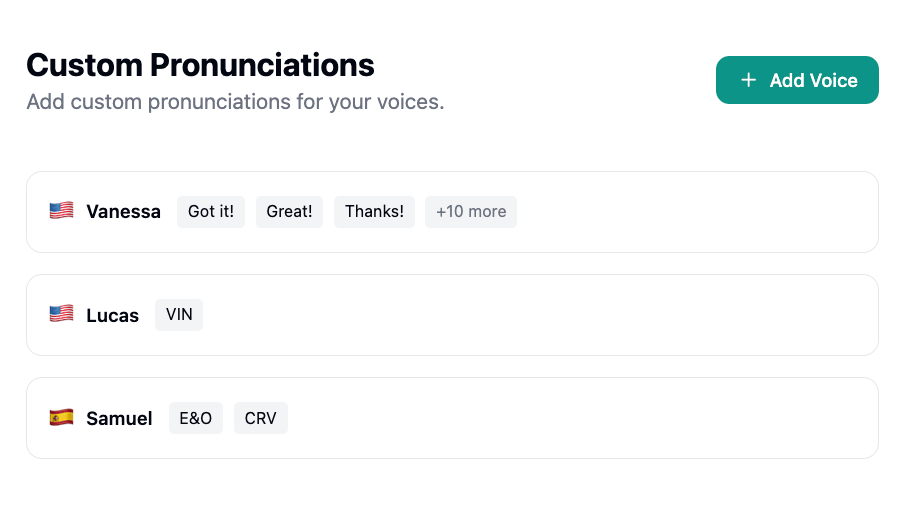
Custom pronunciations let you control how your agents say specific words, names, acronyms, or phrases during calls. Pronunciations are configured per voice, so each voice can have its own set of custom pronunciations.
 Common use cases include:
* Company and brand terminology
* Technical jargon or industry-specific terms
* Names of people or places
* Acronyms that should be spoken as words (e.g., "BOP" → "bop") or spelled out (e.g., "BOR" → "B-O-R")
***
## Adding a Voice
Click **+ Add Voice** in the top-right corner and select a voice from the dropdown. A new card will appear where you can define pronunciations for that voice.
Each voice is displayed with a country flag indicating its language.
***
## Defining Pronunciations
Expand a voice card to configure its pronunciations. Each entry has two fields:
Common use cases include:
* Company and brand terminology
* Technical jargon or industry-specific terms
* Names of people or places
* Acronyms that should be spoken as words (e.g., "BOP" → "bop") or spelled out (e.g., "BOR" → "B-O-R")
***
## Adding a Voice
Click **+ Add Voice** in the top-right corner and select a voice from the dropdown. A new card will appear where you can define pronunciations for that voice.
Each voice is displayed with a country flag indicating its language.
***
## Defining Pronunciations
Expand a voice card to configure its pronunciations. Each entry has two fields:
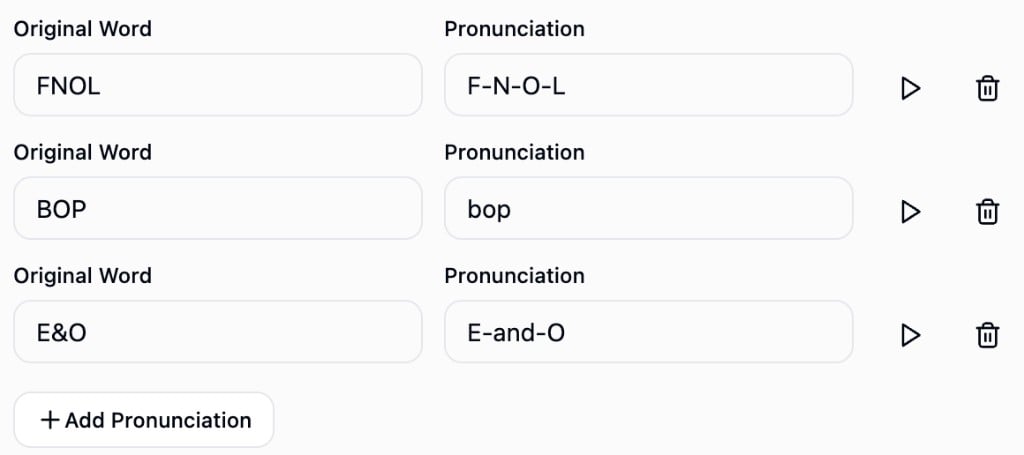 * **Original Word** - The word or phrase exactly as it appears in your agent's responses (e.g., "E\&O")
* **Pronunciation** - How the word should be spoken phonetically using standard spelling (e.g., "E-and-O")
Use the play button next to any entry to preview how it sounds with that voice before saving. Click **+ Add Pronunciation** to add more pairs to the same voice.
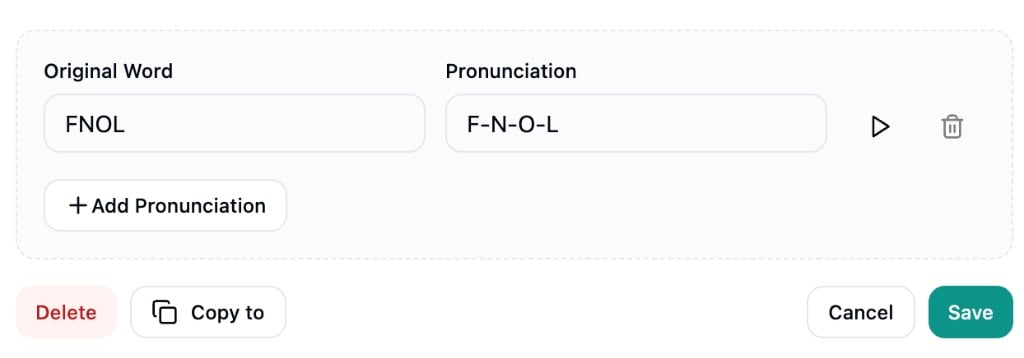
When you're done, click **Save** to persist your changes or **Cancel** to discard them.
* **Original Word** - The word or phrase exactly as it appears in your agent's responses (e.g., "E\&O")
* **Pronunciation** - How the word should be spoken phonetically using standard spelling (e.g., "E-and-O")
Use the play button next to any entry to preview how it sounds with that voice before saving. Click **+ Add Pronunciation** to add more pairs to the same voice.
When you're done, click **Save** to persist your changes or **Cancel** to discard them.
 ***
## Copying Pronunciations
To apply the same pronunciations across multiple voices, click **Copy to** on any voice card. Select the target voices from the dropdown, or use **Select All** to copy to every available voice, then click **Apply**.
***
## Deleting Pronunciations
To remove a single pronunciation entry, click the delete button next to it.
To remove all pronunciations for a voice entirely, expand the card and click **Delete**. This action is permanent and requires confirmation.
***
## Best Practices
* Use simple phonetic spellings that the AI can interpret naturally
* Preview pronunciations before saving to verify they sound correct
* Keep pronunciations consistent across voices that handle the same conversations
* Use hyphens to control pacing (e.g., "C-E-O" for letter-by-letter pronunciation)
* Review call recordings periodically and add pronunciations for any words your agents mispronounce
***
## Copying Pronunciations
To apply the same pronunciations across multiple voices, click **Copy to** on any voice card. Select the target voices from the dropdown, or use **Select All** to copy to every available voice, then click **Apply**.
***
## Deleting Pronunciations
To remove a single pronunciation entry, click the delete button next to it.
To remove all pronunciations for a voice entirely, expand the card and click **Delete**. This action is permanent and requires confirmation.
***
## Best Practices
* Use simple phonetic spellings that the AI can interpret naturally
* Preview pronunciations before saving to verify they sound correct
* Keep pronunciations consistent across voices that handle the same conversations
* Use hyphens to control pacing (e.g., "C-E-O" for letter-by-letter pronunciation)
* Review call recordings periodically and add pronunciations for any words your agents mispronounce