> ## Documentation Index
> Fetch the complete documentation index at: https://docs.getstrada.com/llms.txt
> Use this file to discover all available pages before exploring further.
# Do Not Call List
> Manage opt-out requests and maintain compliance with do-not-call preferences
## Overview
The Do Not Call List helps you maintain compliance and respect customer preferences by tracking contacts who have requested not to be called. All agents will automatically block outbound calls to numbers on this list.
***
## Enable Tracking
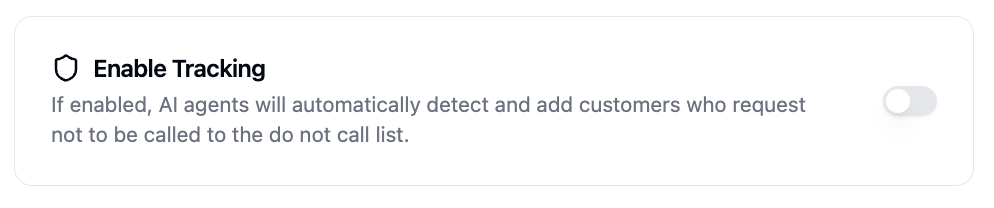
Toggle **Enable Tracking** to have your AI agents automatically detect and add customers who request not to be called during conversations. When enabled, agents will:
1. Recognize opt-out requests during calls
2. Automatically add the phone number to the do not call list
3. Prevent future outbound calls to these contacts
 ***
## Do Not Call List
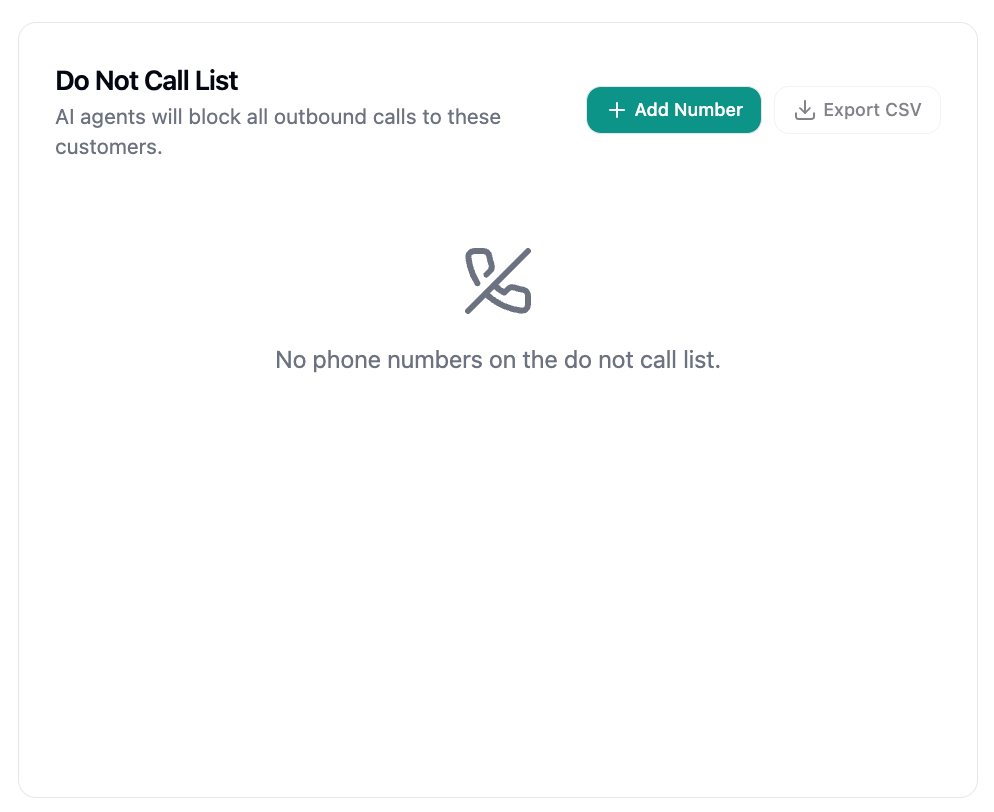
The table displays all blocked phone numbers with the following columns:
* **Phone Number** - The contact's phone number
* **Added** - How long ago the number was added to the list
* **Conversation** - A link to view the original call where the opt-out was requested, or "No Call" if the number was added manually
Each row also includes a delete button to remove the number from the list.
***
## Do Not Call List
The table displays all blocked phone numbers with the following columns:
* **Phone Number** - The contact's phone number
* **Added** - How long ago the number was added to the list
* **Conversation** - A link to view the original call where the opt-out was requested, or "No Call" if the number was added manually
Each row also includes a delete button to remove the number from the list.
 ### Adding a Number
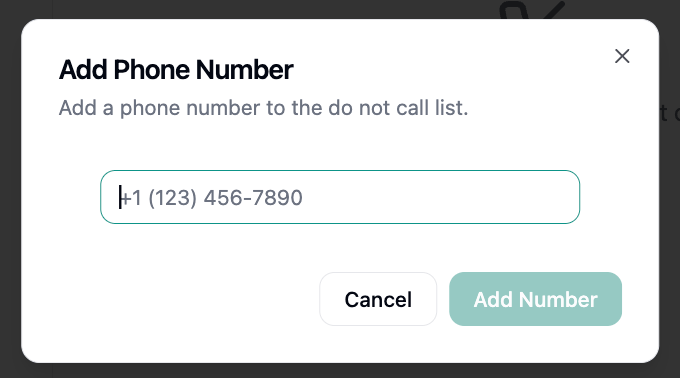
Click **+ Add Number** to manually add a phone number to the do not call list. Enter the number in the dialog and confirm to block future outbound calls to that contact.
### Adding a Number
Click **+ Add Number** to manually add a phone number to the do not call list. Enter the number in the dialog and confirm to block future outbound calls to that contact.
 ### Exporting
Click **Export CSV** to download the complete list for compliance reporting or integration with other systems.
***
## Import Phone Numbers
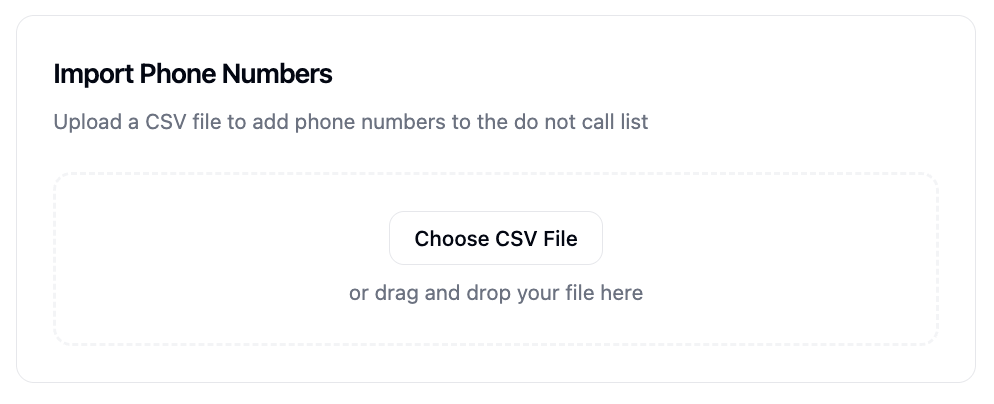
To add multiple phone numbers at once, click **Choose CSV File** or drag and drop a CSV file into the import area.
The CSV must contain a single column with a header that includes "phone" or "number" (e.g., `phone_number`). After uploading, you'll see a preview of the parsed numbers along with any validation errors. Click **Import** to add all valid numbers to the list.
### Exporting
Click **Export CSV** to download the complete list for compliance reporting or integration with other systems.
***
## Import Phone Numbers
To add multiple phone numbers at once, click **Choose CSV File** or drag and drop a CSV file into the import area.
The CSV must contain a single column with a header that includes "phone" or "number" (e.g., `phone_number`). After uploading, you'll see a preview of the parsed numbers along with any validation errors. Click **Import** to add all valid numbers to the list.