> ## Documentation Index
> Fetch the complete documentation index at: https://docs.getstrada.com/llms.txt
> Use this file to discover all available pages before exploring further.
# Emails
> Review and manage email threads handled by your AI agents
## Overview
The Emails page gives you a complete view of every email thread your agents have processed, whether through direct email channels or HubSpot conversations. Filter by agent, channel, or date range, then open any thread to review the full exchange, execution steps, and feedback.
***
## Email History
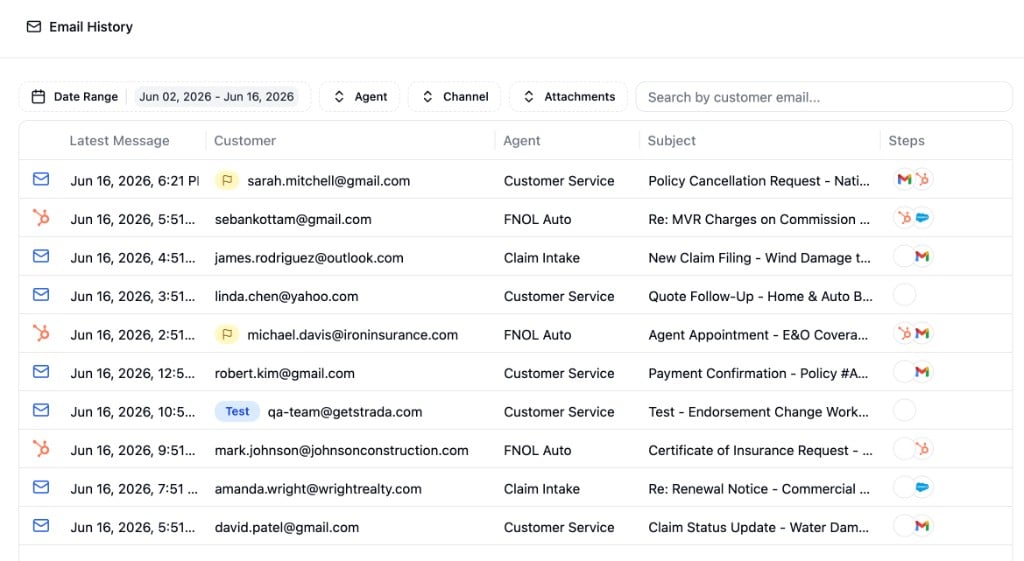
The table lists all email threads within your selected date range, sorted by most recent. Each row shows the channel type (email or HubSpot), the timestamp of the latest message, the customer's email address, the agent that handled the thread, the subject line, and icons for any workflow steps triggered during processing.
Threads involving test conversations or those with feedback are marked with badges next to the customer column.
***
## Filtering
### Date Range
Select a start and end date using the date picker. By default, this is set to the last 14 days.
### Agent
Filter by a specific agent to see only threads that agent handled.
### Channel
Filter by email channel or HubSpot channel. Each option shows the configured email address or HubSpot account ID.
### Attachments
Narrow results to threads that do or do not include attachments.
### Customer Email Search
Type a customer email address into the search bar to narrow results. The search filters as you type.
***
## Thread Details
Click any row to open the thread detail panel on the right side of the page.
### Header
The header displays the channel type (Email Thread or HubSpot Conversation), the subject line, the date of the first message, and the customer's email address.
### Messages
Each message in the thread appears as a card, labeled by role:
* **Customer** - The original sender's message
* **Agent** - Your AI agent's response
* **Live support agent** - A message from a human who took over the conversation
Bot messages display a delivery badge at the bottom indicating whether the response was sent, drafted, failed, or skipped. For HubSpot threads, this badge links directly to the conversation in HubSpot.
### Actions
Bot messages include a collapsible **Actions** section showing the workflow steps that ran before the response was generated. Each step displays its integration icons and can be expanded to view inputs and outputs. If a step triggered a workflow run, a link takes you to the full [Workflow Runs](/logs/workflow-runs) detail.
### Reasoning
When available, a collapsible **Reasoning** section shows the agent's internal thinking process before composing its response.
### Attachments
Customer messages with attachments display them in a collapsible section. Click any attachment to download it.
### Feedback
You can leave feedback on any agent or bot message. Feedback supports threaded comments, resolution tracking, and is visible to all team members.
***
## Testing Email Threads
You can test how your agent would handle an email by clicking the flask icon in the thread header. This creates a test conversation using the same channel, customer email, subject, and body as the original thread.
Test threads are marked with a **Test** badge in the table. Within a test thread, a reply composer appears at the bottom, allowing you to send follow-up messages as the simulated customer to continue the conversation.