> ## Documentation Index
> Fetch the complete documentation index at: https://docs.getstrada.com/llms.txt
> Use this file to discover all available pages before exploring further.
# Claims
> View and manage First Notice of Loss (FNOL) claims
## Overview
The Claims page provides a centralized view of all claims collected during agent conversations. It's built for customers using Strada's FNOL (First Notice of Loss) product to track and manage insurance claims as they come in.
Claims are created automatically when a customer completes intake forms during a call or chat. Each claim captures the form blocks collected during the conversation, its completion status, and links back to the original call or chat for full context.
***
## Claims List
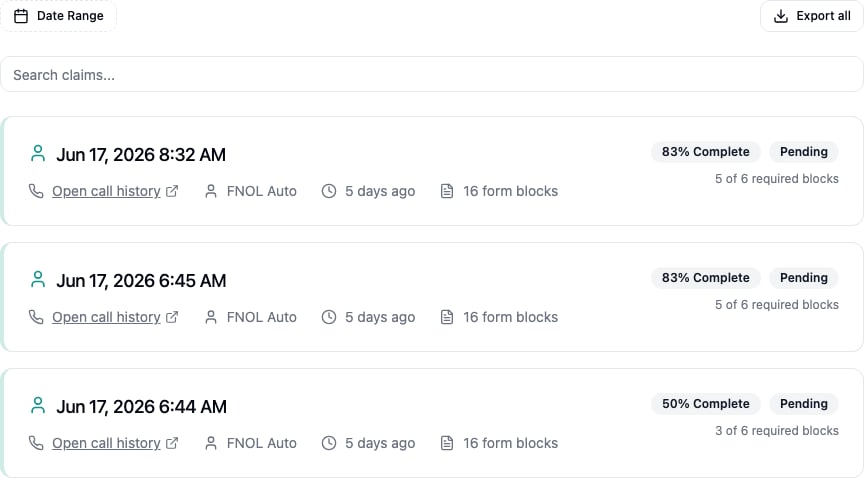
Each claim appears as a card showing:
* **Date and Time** - When the claim was created
* **Open call history** - Opens the associated call's transcript and recording in a new tab (shown when the claim came from a call)
* **Open chat history** - Opens the associated chat transcript in a new tab (shown when the claim came from a chat)
* **Agent** - The agent that collected the claim
* **Time Elapsed** - How long ago the claim was created
* **Form Blocks** - Total number of form blocks collected for the claim
Click anywhere on a card to open the full [claim details](#claim-details).
 ### Completion Status
Each card shows how complete the claim is, based on its required form blocks:
* **Completion Percentage** - A `% Complete` badge appears while a claim is still missing required information
* **Status Badge** - **Pending** while required blocks are incomplete, **Submitted** once all required blocks are filled
* **Progress** - The number of completed required blocks out of the total required (e.g. *3 of 5 required blocks*)
***
## Claim Details
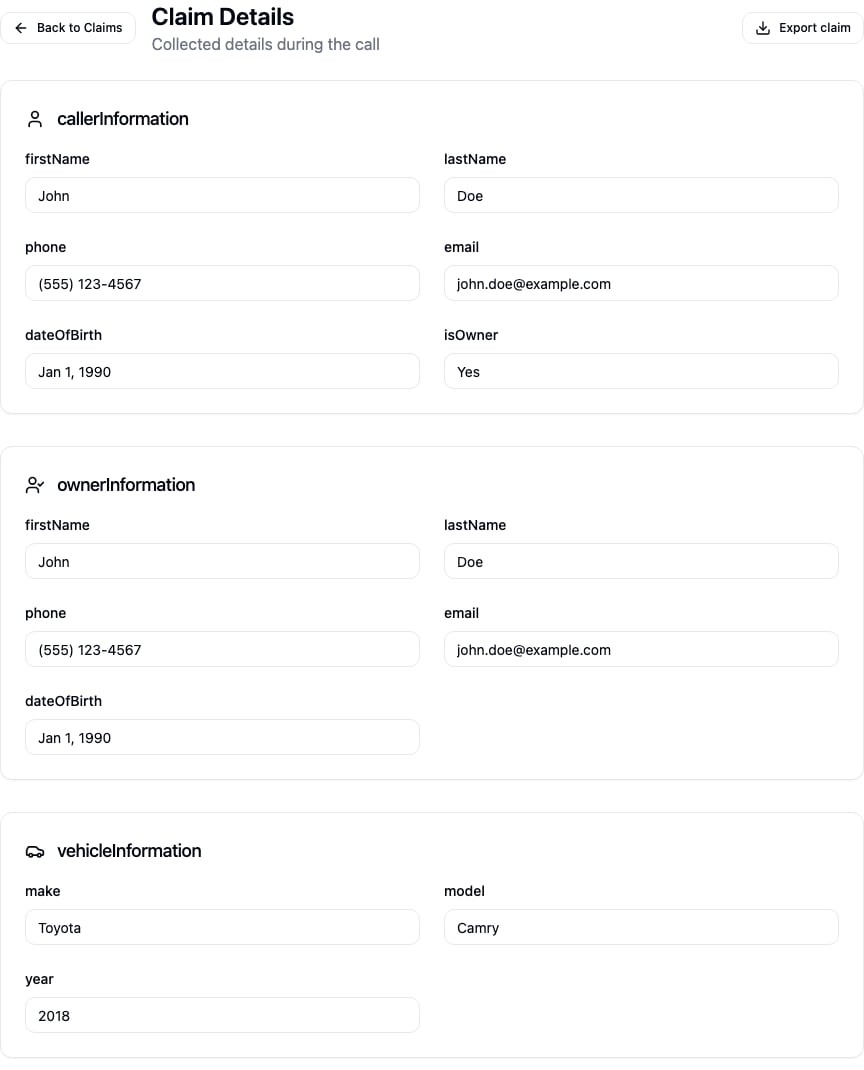
Click a claim card to open its detail view, which shows all of the information collected during the conversation, grouped by form block.
Each block lists its fields and the values captured during the call, formatted by field type (dates, phone numbers, addresses, and more). If a conversation didn't collect any intake information, the detail view shows an empty state instead.
### Completion Status
Each card shows how complete the claim is, based on its required form blocks:
* **Completion Percentage** - A `% Complete` badge appears while a claim is still missing required information
* **Status Badge** - **Pending** while required blocks are incomplete, **Submitted** once all required blocks are filled
* **Progress** - The number of completed required blocks out of the total required (e.g. *3 of 5 required blocks*)
***
## Claim Details
Click a claim card to open its detail view, which shows all of the information collected during the conversation, grouped by form block.
Each block lists its fields and the values captured during the call, formatted by field type (dates, phone numbers, addresses, and more). If a conversation didn't collect any intake information, the detail view shows an empty state instead.
 ***
## Filtering and Search
### Date Range Filter
Use the date picker to select a custom range and view claims from a specific time period.
### Search
Use the search bar to find claims by keyword, contact information, or other claim-related data.
***
## Exporting Claims
### Export All Claims
Click **Export all** in the top-right of the claims list to download your filtered claims data for external analysis, reporting, or integration with other systems.
### Export an Individual Claim
When viewing a claim's details, click **Export claim** to download that specific claim's information in a structured format.
***
## Filtering and Search
### Date Range Filter
Use the date picker to select a custom range and view claims from a specific time period.
### Search
Use the search bar to find claims by keyword, contact information, or other claim-related data.
***
## Exporting Claims
### Export All Claims
Click **Export all** in the top-right of the claims list to download your filtered claims data for external analysis, reporting, or integration with other systems.
### Export an Individual Claim
When viewing a claim's details, click **Export claim** to download that specific claim's information in a structured format.