> ## Documentation Index
> Fetch the complete documentation index at: https://docs.getstrada.com/llms.txt
> Use this file to discover all available pages before exploring further.
# Campaigns
> Create, manage, and monitor your outbound calling campaigns
## Overview
The Campaigns page lets you create and manage outbound calling campaigns. Each campaign groups a set of contacts, assigns them to an agent, and tracks call progress.
***
## Creating a New Campaign
Click **New campaign** to open the campaign form with the following settings:
* **Campaign Name** - A unique name to identify your campaign
* **Agent** - The AI agent that will handle calls
* **Phone Number** - The number used for outbound calls
* **Local Presence** - Match the customer's area code to improve connection rates. Only available if your organization has local presence numbers configured
* **End By** - Optional date, time, and timezone for the campaign to automatically stop
* **Schedule** - When calls can be placed, based on a configured [schedule](/settings/calls/schedules)
* **Concurrency** - Maximum number of simultaneous calls
* **Campaign Data** - A CSV file with your contact list and any additional data fields. Use **Download Template** to get a CSV based on your agent's variables
* **Retry** - Optional [retry configuration](/settings/calls/schedules) to recall contacts who did not answer
* **Pre-Call Workflow** - Optional [Pre-Call Workflow](/deployment/pre-call-workflows) to run before each call, filtered to workflows matching the selected agent
***
## Filtering and Search
* **Agent** - Filter campaigns by assigned agent
* **Search** - Find campaigns by name
A button provides quick access to **Retry Configuration** and **Pre-Call Workflows** settings.
***
## Campaigns Table
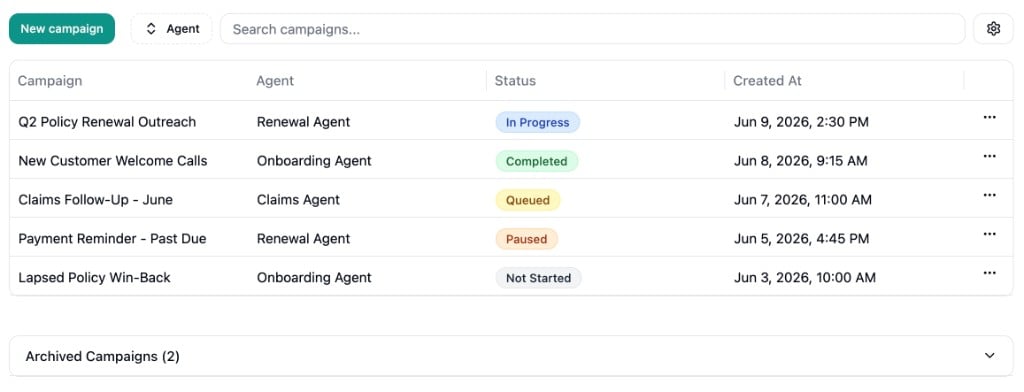 The table displays all active campaigns with the following columns:
* **Campaign** - The campaign name
* **Agent** - The assigned agent
* **Status** - Current state of the campaign:
* **Not Started** - Campaign has not been started
* **Queued** - Campaign is scheduled but not yet running
* **In Progress** - Campaign is actively placing calls
* **Paused** - Campaign has been temporarily stopped
* **Completed** - All calls have been made
* **Created At** - Date and time the campaign was created
Use the menu on each row to:
* **Clone Campaign** - Create a new campaign with the same settings
* **Archive Campaign** - Move the campaign to the archived section
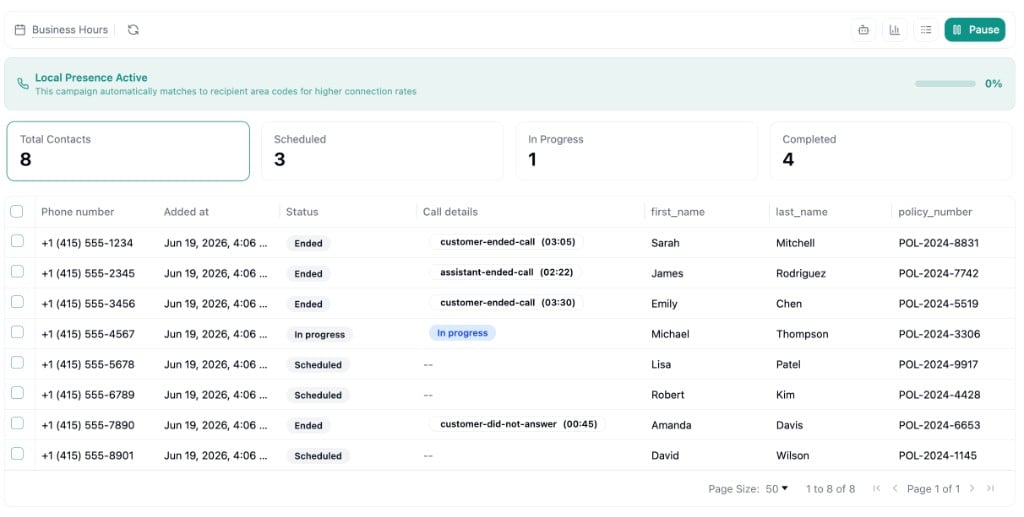
Click any row to view its contacts and call details.
The table displays all active campaigns with the following columns:
* **Campaign** - The campaign name
* **Agent** - The assigned agent
* **Status** - Current state of the campaign:
* **Not Started** - Campaign has not been started
* **Queued** - Campaign is scheduled but not yet running
* **In Progress** - Campaign is actively placing calls
* **Paused** - Campaign has been temporarily stopped
* **Completed** - All calls have been made
* **Created At** - Date and time the campaign was created
Use the menu on each row to:
* **Clone Campaign** - Create a new campaign with the same settings
* **Archive Campaign** - Move the campaign to the archived section
Click any row to view its contacts and call details.
 ***
## Archived Campaigns
The **Archived Campaigns** section appears at the bottom of the page when archived campaigns exist. Click to expand and view them.
Use the menu on archived campaigns to **Unarchive** them back to the active list.
***
## Archived Campaigns
The **Archived Campaigns** section appears at the bottom of the page when archived campaigns exist. Click to expand and view them.
Use the menu on archived campaigns to **Unarchive** them back to the active list.