> ## Documentation Index
> Fetch the complete documentation index at: https://docs.getstrada.com/llms.txt
> Use this file to discover all available pages before exploring further.
# Alerts
> Get notified when conversations match specific conditions
## Overview
Alerts let you monitor conversations in real time and get notified when specific events occur. Set up rules based on agent activity, QA results, sentiment, workflow errors, or action calls, then deliver notifications to email addresses or Slack channels.
***
## Alerts List
Alerts are grouped by status:
* **Active** - Currently monitoring conversations and sending notifications
* **Snoozed** - Temporarily paused for a set duration, then automatically reactivated
* **Disabled** - Turned off entirely until manually re-enabled
Each alert card shows its name, description, delivery channels (email and/or Slack badges), when it was last triggered, and event counts for the last 24 hours and all time.
 ### Managing Alerts
From the list, you can:
* **Snooze** an active alert for 1 hour, 4 hours, 8 hours, 24 hours, 3 days, or 1 week
* **Unsnooze** a snoozed alert to reactivate it immediately
* **Edit**, **Enable/Disable**, or **Delete** an alert from the menu on each card
***
## Creating an Alert
Click **Create alert** to open the alert form.
### Name and Description
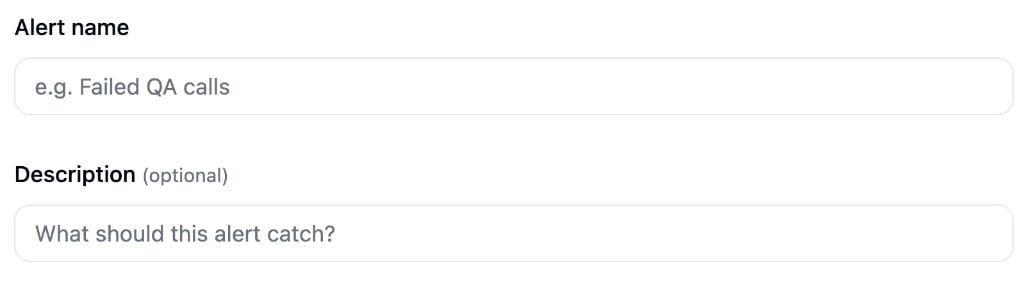
Give your alert a name and a description to help your team understand what it monitors.
### Managing Alerts
From the list, you can:
* **Snooze** an active alert for 1 hour, 4 hours, 8 hours, 24 hours, 3 days, or 1 week
* **Unsnooze** a snoozed alert to reactivate it immediately
* **Edit**, **Enable/Disable**, or **Delete** an alert from the menu on each card
***
## Creating an Alert
Click **Create alert** to open the alert form.
### Name and Description
Give your alert a name and a description to help your team understand what it monitors.
 ### Conditions
Build conditions using the visual condition builder. Within a group, all conditions must match (AND logic). Add multiple groups to fire the alert when any group matches (OR logic).
### Conditions
Build conditions using the visual condition builder. Within a group, all conditions must match (AND logic). Add multiple groups to fire the alert when any group matches (OR logic).
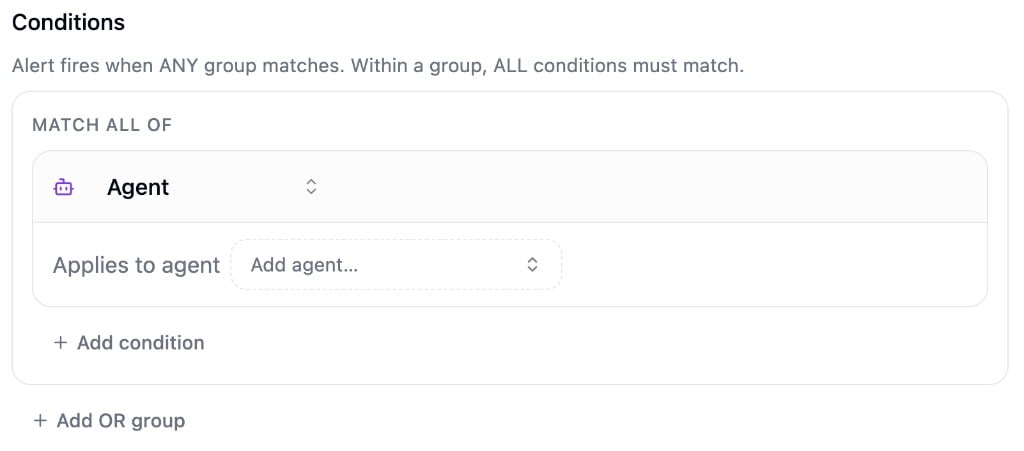 Available condition types:
* **Agent** - Restrict the alert to specific agents
* **Action Call** - Fire when a specific action is called during a conversation
* **Workflow Error** - Fire when any workflow error occurs
* **Call Errored** - Fire when a call ends with an error
* **QA Result** - Fire based on overall QA pass/fail or a specific rubric criteria result
* **Sentiment** - Fire when caller sentiment matches one or more of your configured sentiment labels
### Delivery
Choose how you want to be notified. Both channels are optional. If neither is configured, alert events are still tracked and visible on the alert's event history page.
Available condition types:
* **Agent** - Restrict the alert to specific agents
* **Action Call** - Fire when a specific action is called during a conversation
* **Workflow Error** - Fire when any workflow error occurs
* **Call Errored** - Fire when a call ends with an error
* **QA Result** - Fire based on overall QA pass/fail or a specific rubric criteria result
* **Sentiment** - Fire when caller sentiment matches one or more of your configured sentiment labels
### Delivery
Choose how you want to be notified. Both channels are optional. If neither is configured, alert events are still tracked and visible on the alert's event history page.
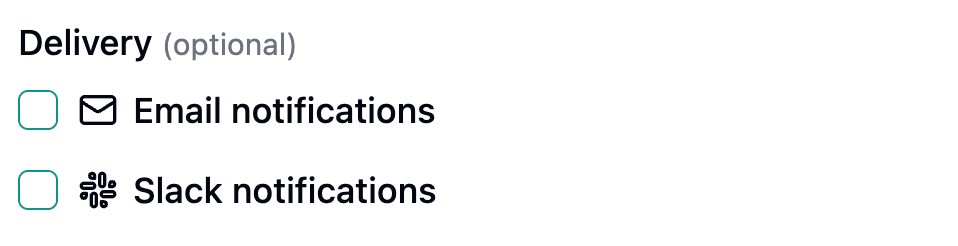 * **Email** - Add one or more email addresses to receive notifications
* **Slack** - Select a connected Slack workspace and channel. If no workspace is connected, you can set one up from the Integrations page.
### Notification Grouping
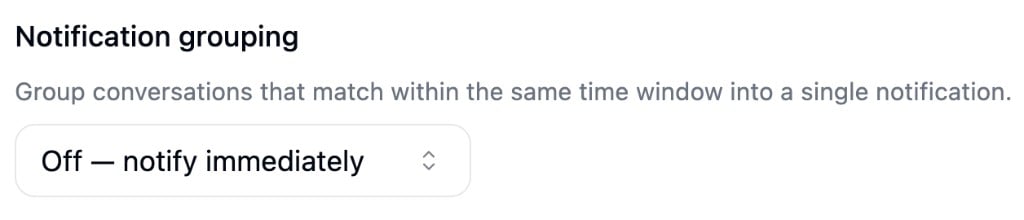
By default, each matching conversation sends its own notification immediately. Use notification grouping to batch conversations that match within the same time window into a single notification.
* **Email** - Add one or more email addresses to receive notifications
* **Slack** - Select a connected Slack workspace and channel. If no workspace is connected, you can set one up from the Integrations page.
### Notification Grouping
By default, each matching conversation sends its own notification immediately. Use notification grouping to batch conversations that match within the same time window into a single notification.
 ***
## Alert Events
Click any alert card to view its event history. Each event represents a conversation that triggered the alert, showing:
* Whether it was a call or chat
* The conditions that matched
* When it was triggered
* A link to the conversation or workflow run for further review
Events are paginated and can be filtered by date range.
***
## Alert Events
Click any alert card to view its event history. Each event represents a conversation that triggered the alert, showing:
* Whether it was a call or chat
* The conditions that matched
* When it was triggered
* A link to the conversation or workflow run for further review
Events are paginated and can be filtered by date range.