> ## Documentation Index
> Fetch the complete documentation index at: https://docs.getstrada.com/llms.txt
> Use this file to discover all available pages before exploring further.
# Test
> Validate your agent's responses before deployment
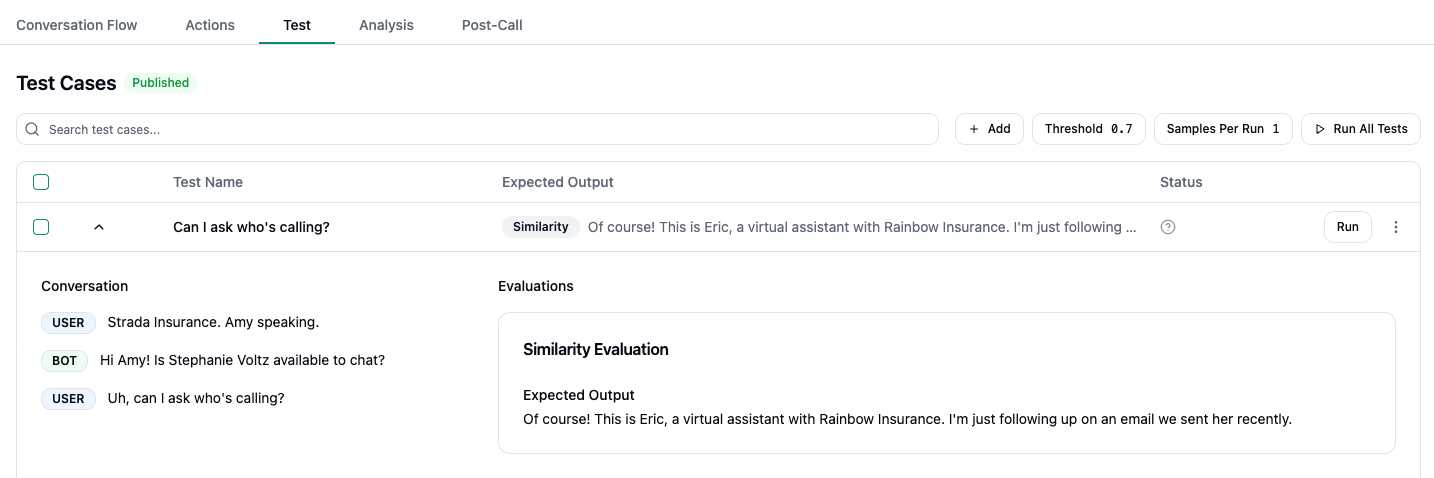
The **Test** tab lets you validate an agent's responses before (and after) going live. Create targeted test cases that simulate a snippet of conversation and check whether the agent's reply matches an expected output. You can run a single case or your whole suite, tune thresholds, and quickly debug failures.
 ***
## Creating a Test Case
Navigate to the **Test** tab and click **Add** to create a new test case. In the editor:
1. **Name** the case with something action-oriented, like "Identify caller" or "Respect DNC"
2. Build the **Conversation** with short turns:
* `user` - what the human said
* `bot` - what your agent already said (context)
* `user` - the prompt that triggers the behavior you're testing
3. Add a final **bot** turn and toggle **Expected** - this is the target reply used for scoring
4. Click **Save** when you're done
You can also create a test case from a real conversation. In the **Conversations** tab, click the button on any message to create a test case with the transcript up to that point. The transcript can be fully edited after import.
### Example
```
user: Strada Insurance. Penny speaking.
bot: Hi Penny! Is Stephanie Voltz available to chat?
user: Can I ask who's calling?
bot (Expected): Of course! My name is Penny, I'm a virtual assistant
calling on behalf of Strada Insurance. I'm following up on
an email we sent recently.
```
***
## Running Tests
* Click **Run** on a single test case to evaluate it
* Use checkboxes to select specific tests, then click **Run Selected** to run just those
* Click **Run All Tests** to run every test case in the suite
* Use **Search** to filter test cases by name, expected output, or tool name
### Samples Per Run
By default, each test runs once. You can increase this to up to **10 samples per run** using the **Samples Per Run** slider. Running multiple samples gives you a more reliable average score and helps catch non-deterministic behavior.
### Threshold
Adjust the **Threshold** slider to set the minimum average similarity score required for a test to pass. The default is **0.7** (70%). Lower it if your agent's responses are valid but worded differently; raise it if you need more precise matches.
***
## Reviewing Results
When you expand a test case after running it, you'll see:
* **Average score** across all samples
* **Pass/fail count** (e.g., "3/3 passed")
* **Individual run results** with navigation to step through each sample
* **Set as expected** button to replace the current expected output with the agent's actual response from a run
***
## Managing Test Cases
* **Duplicate** - Copy an existing test case from the dropdown menu to create variations quickly
* **Edit** - Reopen a test case in the editor to modify the conversation or expected output
* **Delete** - Remove a test case from the suite
***
## Tips
* Assert **one** behavior per case
* Avoid volatile details like dates or IDs in the expected output
* Use the "Set as expected" button to calibrate expected outputs from actual agent responses
* Increase samples per run when testing for consistency across non-deterministic responses
***
## Creating a Test Case
Navigate to the **Test** tab and click **Add** to create a new test case. In the editor:
1. **Name** the case with something action-oriented, like "Identify caller" or "Respect DNC"
2. Build the **Conversation** with short turns:
* `user` - what the human said
* `bot` - what your agent already said (context)
* `user` - the prompt that triggers the behavior you're testing
3. Add a final **bot** turn and toggle **Expected** - this is the target reply used for scoring
4. Click **Save** when you're done
You can also create a test case from a real conversation. In the **Conversations** tab, click the button on any message to create a test case with the transcript up to that point. The transcript can be fully edited after import.
### Example
```
user: Strada Insurance. Penny speaking.
bot: Hi Penny! Is Stephanie Voltz available to chat?
user: Can I ask who's calling?
bot (Expected): Of course! My name is Penny, I'm a virtual assistant
calling on behalf of Strada Insurance. I'm following up on
an email we sent recently.
```
***
## Running Tests
* Click **Run** on a single test case to evaluate it
* Use checkboxes to select specific tests, then click **Run Selected** to run just those
* Click **Run All Tests** to run every test case in the suite
* Use **Search** to filter test cases by name, expected output, or tool name
### Samples Per Run
By default, each test runs once. You can increase this to up to **10 samples per run** using the **Samples Per Run** slider. Running multiple samples gives you a more reliable average score and helps catch non-deterministic behavior.
### Threshold
Adjust the **Threshold** slider to set the minimum average similarity score required for a test to pass. The default is **0.7** (70%). Lower it if your agent's responses are valid but worded differently; raise it if you need more precise matches.
***
## Reviewing Results
When you expand a test case after running it, you'll see:
* **Average score** across all samples
* **Pass/fail count** (e.g., "3/3 passed")
* **Individual run results** with navigation to step through each sample
* **Set as expected** button to replace the current expected output with the agent's actual response from a run
***
## Managing Test Cases
* **Duplicate** - Copy an existing test case from the dropdown menu to create variations quickly
* **Edit** - Reopen a test case in the editor to modify the conversation or expected output
* **Delete** - Remove a test case from the suite
***
## Tips
* Assert **one** behavior per case
* Avoid volatile details like dates or IDs in the expected output
* Use the "Set as expected" button to calibrate expected outputs from actual agent responses
* Increase samples per run when testing for consistency across non-deterministic responses