> ## Documentation Index
> Fetch the complete documentation index at: https://docs.getstrada.com/llms.txt
> Use this file to discover all available pages before exploring further.
# Workflows
> Automate tasks during and after conversations
Workflows let you automate actions and processes that happen during or after a conversation. They use a visual node-based builder where you connect steps to create automation sequences.
To get started, open an agent's **Conversation Flow** editor and click the **Workflows** button in the floating controls.
 ***
## Action Workflows
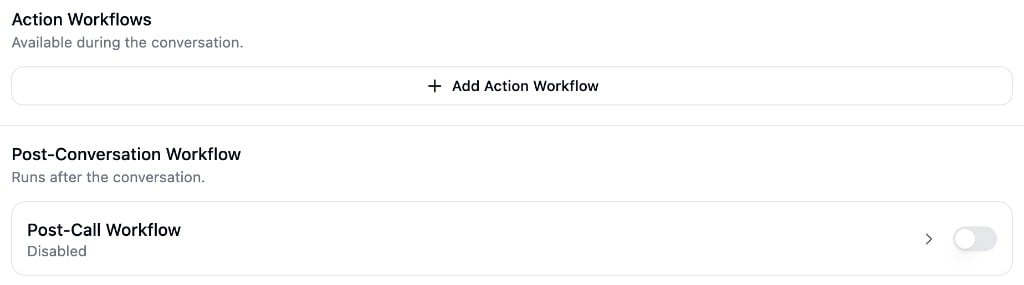
Action workflows run during a live conversation. Reference them in your agent's instructions or advanced rules using `@` and tell the agent when to trigger them. For example, to look up account data, send an SMS, process a payment, or transfer a call.
When triggered, the agent can collect the action variables you've defined from the conversation, execute the workflow, and use the response to continue the conversation.
Step-by-step guide to adding an action workflow, defining its settings, variables, and response schema.
***
## Post-Conversation Workflow
The post-conversation workflow runs automatically after a conversation ends. Use it for follow-up tasks like updating CRM records, sending notification emails, creating support tickets, or running staged outreach sequences.
Post-conversation workflows have access to the full conversation transcript, analysis data, and all variables, and aren't constrained by a time limit.
How to enable post-conversation automation, build multi-step flows, and use patterns like conditional
routing and delayed follow-ups.
***
## Using the Workflow Builder
Both workflow types share the same builder. When you open a workflow, the editor switches from the conversation flow graph to a vertical node chain.
***
## Action Workflows
Action workflows run during a live conversation. Reference them in your agent's instructions or advanced rules using `@` and tell the agent when to trigger them. For example, to look up account data, send an SMS, process a payment, or transfer a call.
When triggered, the agent can collect the action variables you've defined from the conversation, execute the workflow, and use the response to continue the conversation.
Step-by-step guide to adding an action workflow, defining its settings, variables, and response schema.
***
## Post-Conversation Workflow
The post-conversation workflow runs automatically after a conversation ends. Use it for follow-up tasks like updating CRM records, sending notification emails, creating support tickets, or running staged outreach sequences.
Post-conversation workflows have access to the full conversation transcript, analysis data, and all variables, and aren't constrained by a time limit.
How to enable post-conversation automation, build multi-step flows, and use patterns like conditional
routing and delayed follow-ups.
***
## Using the Workflow Builder
Both workflow types share the same builder. When you open a workflow, the editor switches from the conversation flow graph to a vertical node chain.
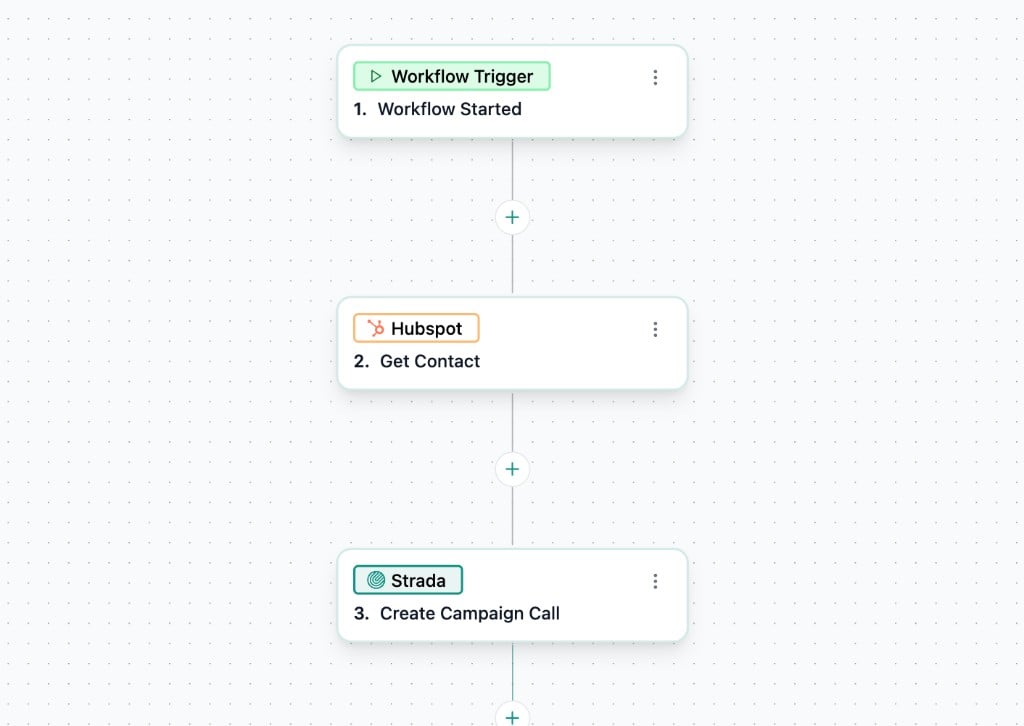 * Click the button between nodes to add a new step
* Select an app from the grid, then choose the specific action
* Click the button between nodes to add a new step
* Select an app from the grid, then choose the specific action
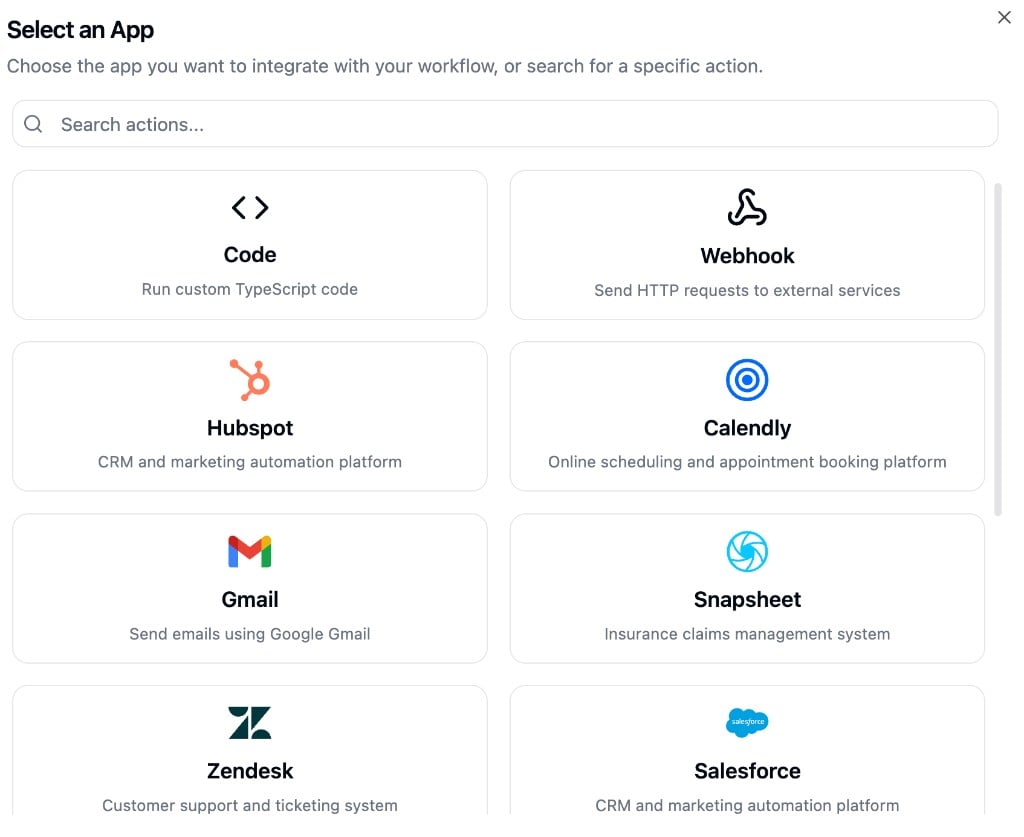 * Click a node to configure it in the left panel
* Use `/` in any configuration field to reference variables from the conversation, analysis data, or outputs from previous nodes
Some commonly used nodes include:
**Flow Control** - Split (conditional branching), Delay (timed pauses)
**Utility** - Code (custom TypeScript), LLM (language model processing), Knowledge Base Query (search connected knowledge bases)
For the complete list of nodes and integrations, see the [Node Reference](/building/conversation-flow/workflows/node-reference).
***
## Publishing
Workflows have their own publish model, separate from the agent's draft/publish cycle.
When you configure a node, click **Save Changes** at the bottom of the configuration panel to persist that node's settings. Once you've saved your changes, a banner appears at the top of the builder with two options:
* Click a node to configure it in the left panel
* Use `/` in any configuration field to reference variables from the conversation, analysis data, or outputs from previous nodes
Some commonly used nodes include:
**Flow Control** - Split (conditional branching), Delay (timed pauses)
**Utility** - Code (custom TypeScript), LLM (language model processing), Knowledge Base Query (search connected knowledge bases)
For the complete list of nodes and integrations, see the [Node Reference](/building/conversation-flow/workflows/node-reference).
***
## Publishing
Workflows have their own publish model, separate from the agent's draft/publish cycle.
When you configure a node, click **Save Changes** at the bottom of the configuration panel to persist that node's settings. Once you've saved your changes, a banner appears at the top of the builder with two options:
 * **Publish Workflow** - Makes the current changes live
* **Undo Changes** - Reverts to the last published version
Publishing the agent does not automatically publish its workflows, and vice versa. Each workflow must be published independently.
***
## Variables and Data Mapping
Every node can reference data from the conversation. Type `/` in any configuration field to open the variable picker:
* Call and chat variables passed into the conversation
* Analysis data extracted by the agent (post-conversation workflows only)
* Secure metadata (encrypted values not visible to the LLM)
* Outputs from previous nodes in the workflow
* Session variables set during the conversation
* **Publish Workflow** - Makes the current changes live
* **Undo Changes** - Reverts to the last published version
Publishing the agent does not automatically publish its workflows, and vice versa. Each workflow must be published independently.
***
## Variables and Data Mapping
Every node can reference data from the conversation. Type `/` in any configuration field to open the variable picker:
* Call and chat variables passed into the conversation
* Analysis data extracted by the agent (post-conversation workflows only)
* Secure metadata (encrypted values not visible to the LLM)
* Outputs from previous nodes in the workflow
* Session variables set during the conversation