> ## Documentation Index
> Fetch the complete documentation index at: https://docs.getstrada.com/llms.txt
> Use this file to discover all available pages before exploring further.
# Voice
> Choose a voice, adjust speed, and preview your agent's sound
The Voice section controls how your agent sounds on calls. Select a voice, adjust the speaking speed, add background ambience, and preview the result before publishing.
Open this section by clicking **Voice** in the floating controls on the editor.
***
## Selecting a Voice
Choose a voice from the dropdown. Each voice has a distinct tone and accent. The selected voice is used for all outbound and inbound calls handled by this agent.
 ***
## Background Sound
Toggle background sound on to add subtle office ambience to your agent's calls.
***
## Background Sound
Toggle background sound on to add subtle office ambience to your agent's calls.
 ***
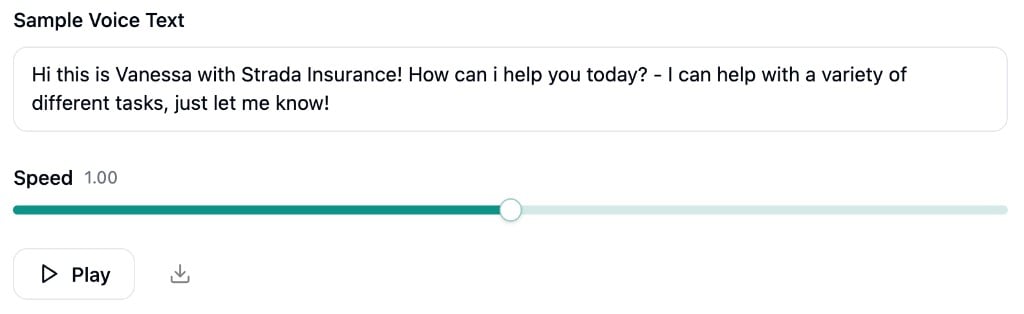
## Speed
Adjust how fast your agent speaks using the speed slider. Speed ranges from 0.8x to 1.2x, with a default of 1.0.
***
## Previewing
Use the **Sample Voice Text** field to type any text you want to hear in the selected voice. Click **Play** to generate and listen to the audio sample. You can also download the sample as an MP3 file.
The sample automatically updates to include the selected voice's name when you switch voices.
***
## Speed
Adjust how fast your agent speaks using the speed slider. Speed ranges from 0.8x to 1.2x, with a default of 1.0.
***
## Previewing
Use the **Sample Voice Text** field to type any text you want to hear in the selected voice. Click **Play** to generate and listen to the audio sample. You can also download the sample as an MP3 file.
The sample automatically updates to include the selected voice's name when you switch voices.
 ***
## Custom Pronunciations
If the selected voice has custom pronunciations configured for your organization, they are displayed at the bottom of this section as a preview. Click **Manage Pronunciations** to open the organization-wide [Pronunciations](/settings/calls/pronunciations) page where you can add, edit, or remove pronunciation overrides.
***
## Custom Pronunciations
If the selected voice has custom pronunciations configured for your organization, they are displayed at the bottom of this section as a preview. Click **Manage Pronunciations** to open the organization-wide [Pronunciations](/settings/calls/pronunciations) page where you can add, edit, or remove pronunciation overrides.