> ## Documentation Index
> Fetch the complete documentation index at: https://docs.getstrada.com/llms.txt
> Use this file to discover all available pages before exploring further.
# Zendesk
> Connect your Strada Voice agents with Zendesk for customer support
## Overview
The Zendesk app allows your agent to seamlessly integrate with Zendesk's customer support platform, enabling automatic ticket creation and management during conversations. This integration is perfect for creating support tickets, updating customer information, and streamlining your support workflows directly through your agent.
***
## How to configure Zendesk
**Step 1: Navigate to the Zendesk app**
In your Strada dashboard, navigate to the **Apps** section in the left sidebar, then locate and click on **Zendesk** to begin the configuration process.
**Step 2: Enter your subdomain**
Provide your Zendesk subdomain:
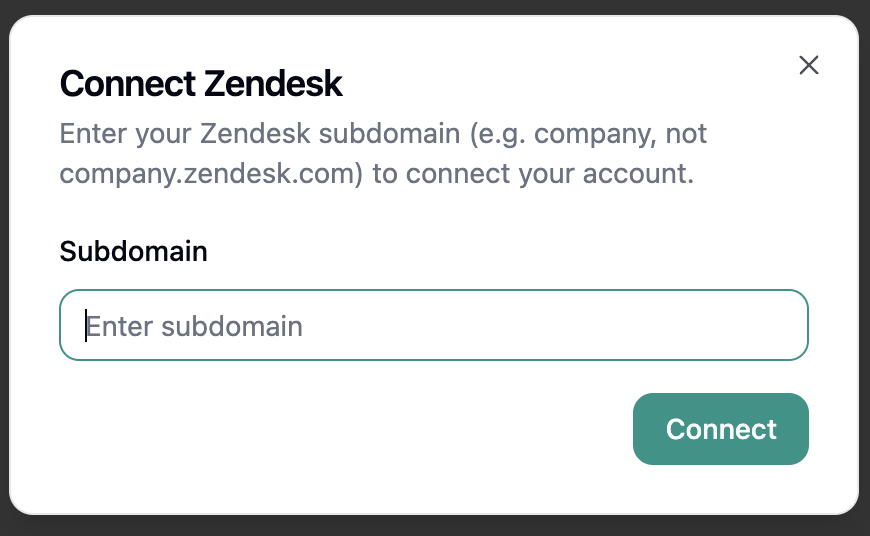 * **Subdomain**: Your Zendesk subdomain (e.g., yourcompany.zendesk.com)
**Step 3: Initiate the connection**
Click the **Connect** button. This will redirect you to Zendesk's authorization page.
**Step 4: Authorize Strada Voice**
On the Zendesk authorization page, review the requested permissions and sign in with your Zendesk account. Click **Allow** to grant Strada Voice the necessary access.
**Step 5: Verify the connection**
Once redirected back to Strada, you should see a confirmation that your Zendesk account is successfully connected. The connection should then show up on your list of **Connected Apps**.
***
## Available Zendesk Actions
Once connected, your agent can perform the following actions:
### During Conversations (In-Conversation Actions)
* **Create Ticket** - Generate support tickets during live conversations
### After Conversations (Post-Conversation Actions)
* **Create Ticket** - Create support tickets during or after the completion of a conversation
* **Update Ticket** - Modify existing ticket information during or after conversations
See the [In-Conversation Actions](/building/actions/in-call-actions) and [Post-Conversation Actions](/building/actions/post-conversation-actions) documentation for detailed information on configuring Zendesk actions.
### Strada Workflows
Zendesk can be used in Strada workflows to automate follow-up processes:
* **Create Ticket** - Create support tickets during or after the completion of a conversation
* **Update Ticket** - Modify existing ticket information during or after conversations
* **Check Queue** - Check the queue status in Zendesk
***
## Zendesk Permissions
Strada Voice requests the following permissions to integrate with your Zendesk account:
* **Create tickets**: Permission to create new support tickets on your behalf
* **Read tickets**: Access to view and update existing ticket information
* **Read user profile**: Access to your basic profile information for ticket attribution
These permissions are essential for Strada Voice to perform the configured Zendesk actions effectively. You
can review and manage these permissions within your Zendesk account settings.
***
## Security Best Practices
* Keep your Zendesk API token secure and never share it publicly
* Regularly rotate your API tokens for enhanced security
* Monitor your Zendesk tickets to verify proper usage
* Disconnect the integration if it's no longer needed
* Keep your Zendesk account secured with strong passwords and two-factor authentication
***
* **Subdomain**: Your Zendesk subdomain (e.g., yourcompany.zendesk.com)
**Step 3: Initiate the connection**
Click the **Connect** button. This will redirect you to Zendesk's authorization page.
**Step 4: Authorize Strada Voice**
On the Zendesk authorization page, review the requested permissions and sign in with your Zendesk account. Click **Allow** to grant Strada Voice the necessary access.
**Step 5: Verify the connection**
Once redirected back to Strada, you should see a confirmation that your Zendesk account is successfully connected. The connection should then show up on your list of **Connected Apps**.
***
## Available Zendesk Actions
Once connected, your agent can perform the following actions:
### During Conversations (In-Conversation Actions)
* **Create Ticket** - Generate support tickets during live conversations
### After Conversations (Post-Conversation Actions)
* **Create Ticket** - Create support tickets during or after the completion of a conversation
* **Update Ticket** - Modify existing ticket information during or after conversations
See the [In-Conversation Actions](/building/actions/in-call-actions) and [Post-Conversation Actions](/building/actions/post-conversation-actions) documentation for detailed information on configuring Zendesk actions.
### Strada Workflows
Zendesk can be used in Strada workflows to automate follow-up processes:
* **Create Ticket** - Create support tickets during or after the completion of a conversation
* **Update Ticket** - Modify existing ticket information during or after conversations
* **Check Queue** - Check the queue status in Zendesk
***
## Zendesk Permissions
Strada Voice requests the following permissions to integrate with your Zendesk account:
* **Create tickets**: Permission to create new support tickets on your behalf
* **Read tickets**: Access to view and update existing ticket information
* **Read user profile**: Access to your basic profile information for ticket attribution
These permissions are essential for Strada Voice to perform the configured Zendesk actions effectively. You
can review and manage these permissions within your Zendesk account settings.
***
## Security Best Practices
* Keep your Zendesk API token secure and never share it publicly
* Regularly rotate your API tokens for enhanced security
* Monitor your Zendesk tickets to verify proper usage
* Disconnect the integration if it's no longer needed
* Keep your Zendesk account secured with strong passwords and two-factor authentication
***