> ## Documentation Index
> Fetch the complete documentation index at: https://docs.getstrada.com/llms.txt
> Use this file to discover all available pages before exploring further.
# Email (SMTP)
> Send emails from your agent using your own SMTP server
## Overview
The SMTP Email app allows your agent to send emails using your own SMTP server configuration. This integration enables your agent to send transactional emails, notifications, and automated responses directly through your preferred email service provider.
***
## How to configure SMTP Email
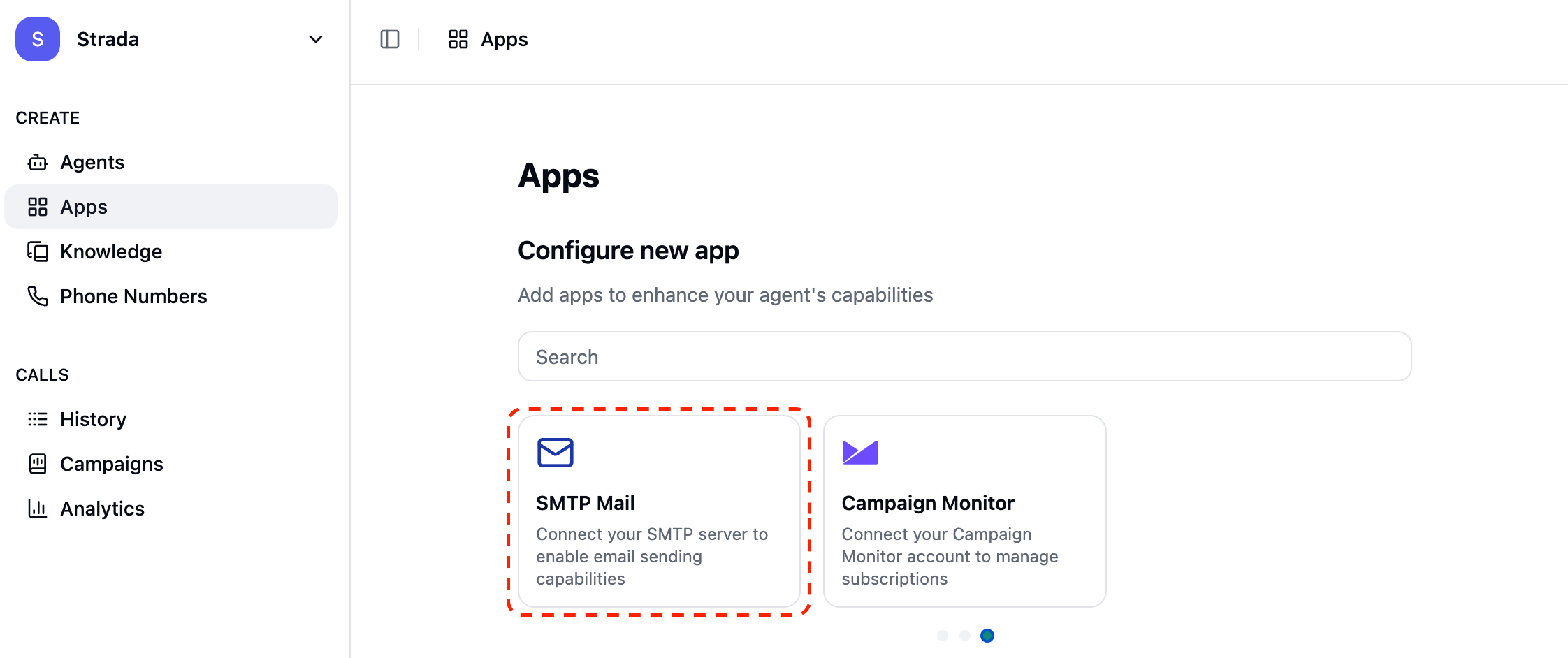
**Step 1: Navigate to the SMTP Mail app**
In your Strada dashboard, navigate to the **Apps** section in the left sidebar, then locate and click on **SMTP Mail** to begin the configuration process.
 **Step 2: Configure your SMTP server settings**
Click the **Connect** button to open the SMTP configuration dialog. You'll need to provide the following information about your SMTP server:
**Step 2: Configure your SMTP server settings**
Click the **Connect** button to open the SMTP configuration dialog. You'll need to provide the following information about your SMTP server:
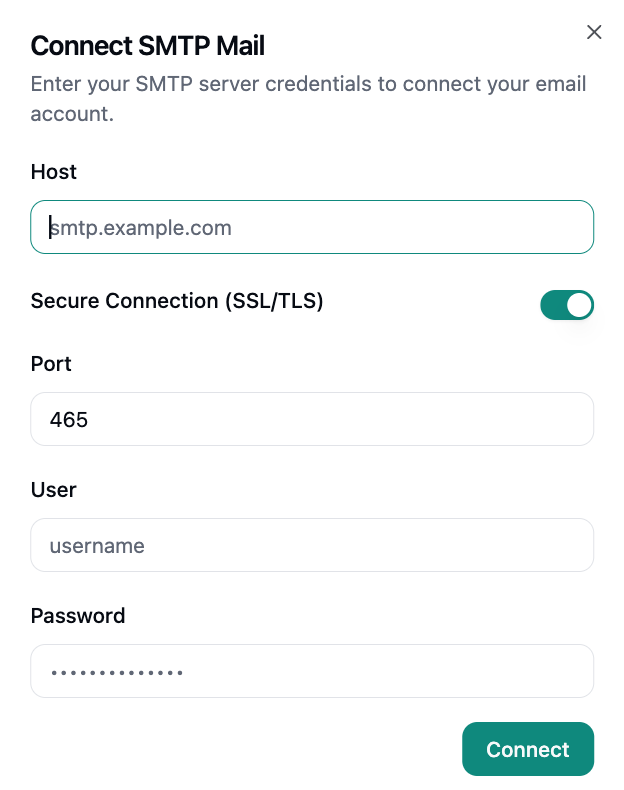 * **Host**: Your SMTP server hostname (e.g., `smtp.gmail.com`, `smtp.resend.com`)
* **Secure Connection (SSL/TLS)**: Toggle this on if your SMTP server requires encrypted connections
* **Port**: The port number for your SMTP server (typically 25, 465, 587, 2465, or 2587)
* **User**: Your SMTP username or email address
* **Password**: Your SMTP password or app-specific password
Many email providers require app-specific passwords instead of your regular account password. Check your
email provider's documentation for instructions on generating app passwords.
**Step 3: Test and save your configuration**
After entering your SMTP credentials, click **Connect** to test the connection and save your configuration. Strada will verify that it can successfully connect to your SMTP server.
***
## Available SMTP Actions
Once connected, your agent can perform the following actions:
### During Conversations (In-Conversation Actions)
* **Send Email** - Send emails directly through your SMTP server during live conversations
See the [In-Conversation Actions](/building/actions/in-call-actions) documentation for detailed information on configuring SMTP email actions.
### Strada Workflow Actions
SMTP can be used in Strada workflows to automate follow-up processes:
* **Send Email** - Send emails during or after a conversation's completion through your SMTP server
***
## SMTP Configuration Details
### Common SMTP Providers
Here are the typical settings for popular email providers:
#### Gmail
* **Host**: `smtp.gmail.com`
* **Port**: `587` (STARTTLS) or `465` (SSL/TLS)
* **Secure Connection**: Enabled
* **User**: Your Gmail address
* **Password**: App-specific password (not your regular Gmail password)
#### Outlook/Hotmail
* **Host**: `smtp-mail.outlook.com`
* **Port**: `587`
* **Secure Connection**: Enabled
* **User**: Your Outlook email address
* **Password**: Your account password
### Port Types and Security
Different ports provide different security configurations:
| Port Type | Ports | Security Method |
| ------------ | ------------- | --------------------------------------------------------------------- |
| **SMTPS** | 465, 2465 | Implicit SSL/TLS - Immediately connects via encrypted connection |
| **STARTTLS** | 25, 587, 2587 | Explicit SSL/TLS - Starts with plain text, then upgrades to encrypted |
Port 25 is often blocked by ISPs and cloud providers. If you're having connection issues, try using port 587
with STARTTLS or port 465 with SSL/TLS.
### Authentication Requirements
Most modern SMTP servers require authentication. Ensure you're using the correct credentials:
* **Regular email providers** (Gmail, Outlook): Use your email address as the username
* **Self-hosted servers**: Use the credentials configured by your system administrator
***
## Using SMTP Email in Your Agent
Once configured, your agent can send emails through your SMTP server. The emails sent through this integration will:
* Appear in your email provider's sent items (if supported)
* Be subject to your email provider's sending limits and policies
* Include any custom headers or signatures configured in your SMTP server
## Troubleshooting
### Common Issues
**Connection Failed**
* Verify your host, port, and security settings
* Check if your firewall allows outbound connections on the specified port
* Ensure you're using the correct username and password format
**Authentication Errors**
* For Gmail and other providers, use app-specific passwords instead of your regular password
* Verify that "Less secure app access" is enabled (if required by your provider)
* Check if two-factor authentication requires additional setup steps
**Rate Limiting**
* SMTP sending is subject to the same rate limits as API-based sending
* Most email providers have daily sending limits that may affect high-volume use cases
If you continue experiencing connection issues, contact your email provider's support team to verify that
SMTP access is enabled for your account and that you're using the correct settings.
***
## Security Best Practices
* Use app-specific passwords when available instead of your main account password
* Enable SSL/TLS encryption for all SMTP connections
* Regularly rotate your SMTP credentials
* Monitor your email provider's security logs for unauthorized access attempts
* Consider using dedicated transactional email services for high-volume sending
* **Host**: Your SMTP server hostname (e.g., `smtp.gmail.com`, `smtp.resend.com`)
* **Secure Connection (SSL/TLS)**: Toggle this on if your SMTP server requires encrypted connections
* **Port**: The port number for your SMTP server (typically 25, 465, 587, 2465, or 2587)
* **User**: Your SMTP username or email address
* **Password**: Your SMTP password or app-specific password
Many email providers require app-specific passwords instead of your regular account password. Check your
email provider's documentation for instructions on generating app passwords.
**Step 3: Test and save your configuration**
After entering your SMTP credentials, click **Connect** to test the connection and save your configuration. Strada will verify that it can successfully connect to your SMTP server.
***
## Available SMTP Actions
Once connected, your agent can perform the following actions:
### During Conversations (In-Conversation Actions)
* **Send Email** - Send emails directly through your SMTP server during live conversations
See the [In-Conversation Actions](/building/actions/in-call-actions) documentation for detailed information on configuring SMTP email actions.
### Strada Workflow Actions
SMTP can be used in Strada workflows to automate follow-up processes:
* **Send Email** - Send emails during or after a conversation's completion through your SMTP server
***
## SMTP Configuration Details
### Common SMTP Providers
Here are the typical settings for popular email providers:
#### Gmail
* **Host**: `smtp.gmail.com`
* **Port**: `587` (STARTTLS) or `465` (SSL/TLS)
* **Secure Connection**: Enabled
* **User**: Your Gmail address
* **Password**: App-specific password (not your regular Gmail password)
#### Outlook/Hotmail
* **Host**: `smtp-mail.outlook.com`
* **Port**: `587`
* **Secure Connection**: Enabled
* **User**: Your Outlook email address
* **Password**: Your account password
### Port Types and Security
Different ports provide different security configurations:
| Port Type | Ports | Security Method |
| ------------ | ------------- | --------------------------------------------------------------------- |
| **SMTPS** | 465, 2465 | Implicit SSL/TLS - Immediately connects via encrypted connection |
| **STARTTLS** | 25, 587, 2587 | Explicit SSL/TLS - Starts with plain text, then upgrades to encrypted |
Port 25 is often blocked by ISPs and cloud providers. If you're having connection issues, try using port 587
with STARTTLS or port 465 with SSL/TLS.
### Authentication Requirements
Most modern SMTP servers require authentication. Ensure you're using the correct credentials:
* **Regular email providers** (Gmail, Outlook): Use your email address as the username
* **Self-hosted servers**: Use the credentials configured by your system administrator
***
## Using SMTP Email in Your Agent
Once configured, your agent can send emails through your SMTP server. The emails sent through this integration will:
* Appear in your email provider's sent items (if supported)
* Be subject to your email provider's sending limits and policies
* Include any custom headers or signatures configured in your SMTP server
## Troubleshooting
### Common Issues
**Connection Failed**
* Verify your host, port, and security settings
* Check if your firewall allows outbound connections on the specified port
* Ensure you're using the correct username and password format
**Authentication Errors**
* For Gmail and other providers, use app-specific passwords instead of your regular password
* Verify that "Less secure app access" is enabled (if required by your provider)
* Check if two-factor authentication requires additional setup steps
**Rate Limiting**
* SMTP sending is subject to the same rate limits as API-based sending
* Most email providers have daily sending limits that may affect high-volume use cases
If you continue experiencing connection issues, contact your email provider's support team to verify that
SMTP access is enabled for your account and that you're using the correct settings.
***
## Security Best Practices
* Use app-specific passwords when available instead of your main account password
* Enable SSL/TLS encryption for all SMTP connections
* Regularly rotate your SMTP credentials
* Monitor your email provider's security logs for unauthorized access attempts
* Consider using dedicated transactional email services for high-volume sending