> ## Documentation Index
> Fetch the complete documentation index at: https://docs.getstrada.com/llms.txt
> Use this file to discover all available pages before exploring further.
# Cal.com
> Connect your Strada Voice agents with Cal.com for appointment scheduling
## Overview
The Cal.com app allows your agent to seamlessly integrate with Cal.com's scheduling platform, enabling real-time appointment booking and calendar management during conversations. This integration is perfect for scheduling meetings, consultations, and follow-up calls directly through your agent.
***
## How to configure Cal.com
**Step 1: Navigate to the Cal.com app**
In your Strada dashboard, navigate to the **Apps** section in the left sidebar, then locate and click on **Cal.com** to begin the configuration process.
**Step 2: Initiate the connection**
Click the **Connect** button to open the Cal.com configuration dialog.
**Step 3: Enter your API credentials**
Provide your Cal.com API credentials:
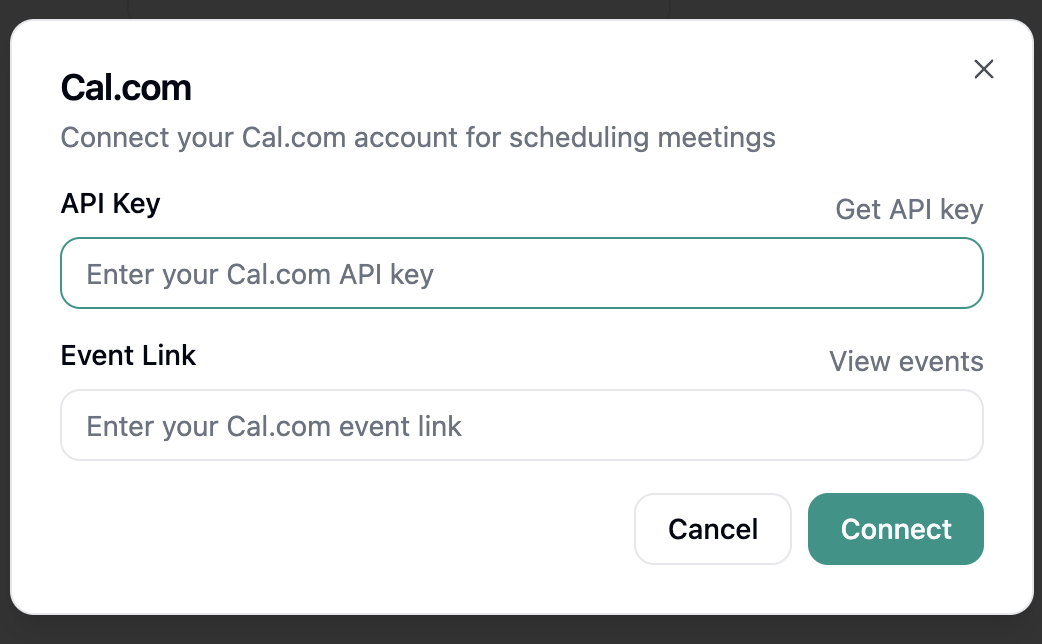 * **API Key**: Your Cal.com API key from your account settings
* **Event Link**: Your Cal.com event link
**Step 4: Verify the connection**
Once you've entered your credentials, click **Connect** to test the connection and save your configuration. Strada will verify that it can successfully connect to your Cal.com account.
***
## Available Cal.com Actions
Once connected, your agent can perform the following actions:
### During Conversations (In-Conversation Actions)
* **Get Available Slots** - Retrieve available time slots from Cal.com calendars during conversations
* **Create Meeting** - Book and confirm appointments through Cal.com during conversations
See the [In-Conversation Actions](/building/actions/in-call-actions) documentation for detailed information on configuring Cal.com actions.
***
## Cal.com Permissions
The Cal.com integration requires the following permissions:
* **Read calendars**: Access to view your available time slots and existing bookings
* **Create bookings**: Permission to schedule new appointments on your behalf
* **Read user profile**: Access to your basic profile information for booking purposes
You can review and manage these permissions within your Cal.com account settings under **Settings** → **API
Keys**.
***
## Security Best Practices
* Keep your Cal.com API key secure and never share it publicly
* Regularly rotate your API keys for enhanced security
* Monitor your Cal.com bookings to verify proper usage
* Disconnect the integration if it's no longer needed
* Keep your Cal.com account secured with strong passwords and two-factor authentication
***
* **API Key**: Your Cal.com API key from your account settings
* **Event Link**: Your Cal.com event link
**Step 4: Verify the connection**
Once you've entered your credentials, click **Connect** to test the connection and save your configuration. Strada will verify that it can successfully connect to your Cal.com account.
***
## Available Cal.com Actions
Once connected, your agent can perform the following actions:
### During Conversations (In-Conversation Actions)
* **Get Available Slots** - Retrieve available time slots from Cal.com calendars during conversations
* **Create Meeting** - Book and confirm appointments through Cal.com during conversations
See the [In-Conversation Actions](/building/actions/in-call-actions) documentation for detailed information on configuring Cal.com actions.
***
## Cal.com Permissions
The Cal.com integration requires the following permissions:
* **Read calendars**: Access to view your available time slots and existing bookings
* **Create bookings**: Permission to schedule new appointments on your behalf
* **Read user profile**: Access to your basic profile information for booking purposes
You can review and manage these permissions within your Cal.com account settings under **Settings** → **API
Keys**.
***
## Security Best Practices
* Keep your Cal.com API key secure and never share it publicly
* Regularly rotate your API keys for enhanced security
* Monitor your Cal.com bookings to verify proper usage
* Disconnect the integration if it's no longer needed
* Keep your Cal.com account secured with strong passwords and two-factor authentication
***